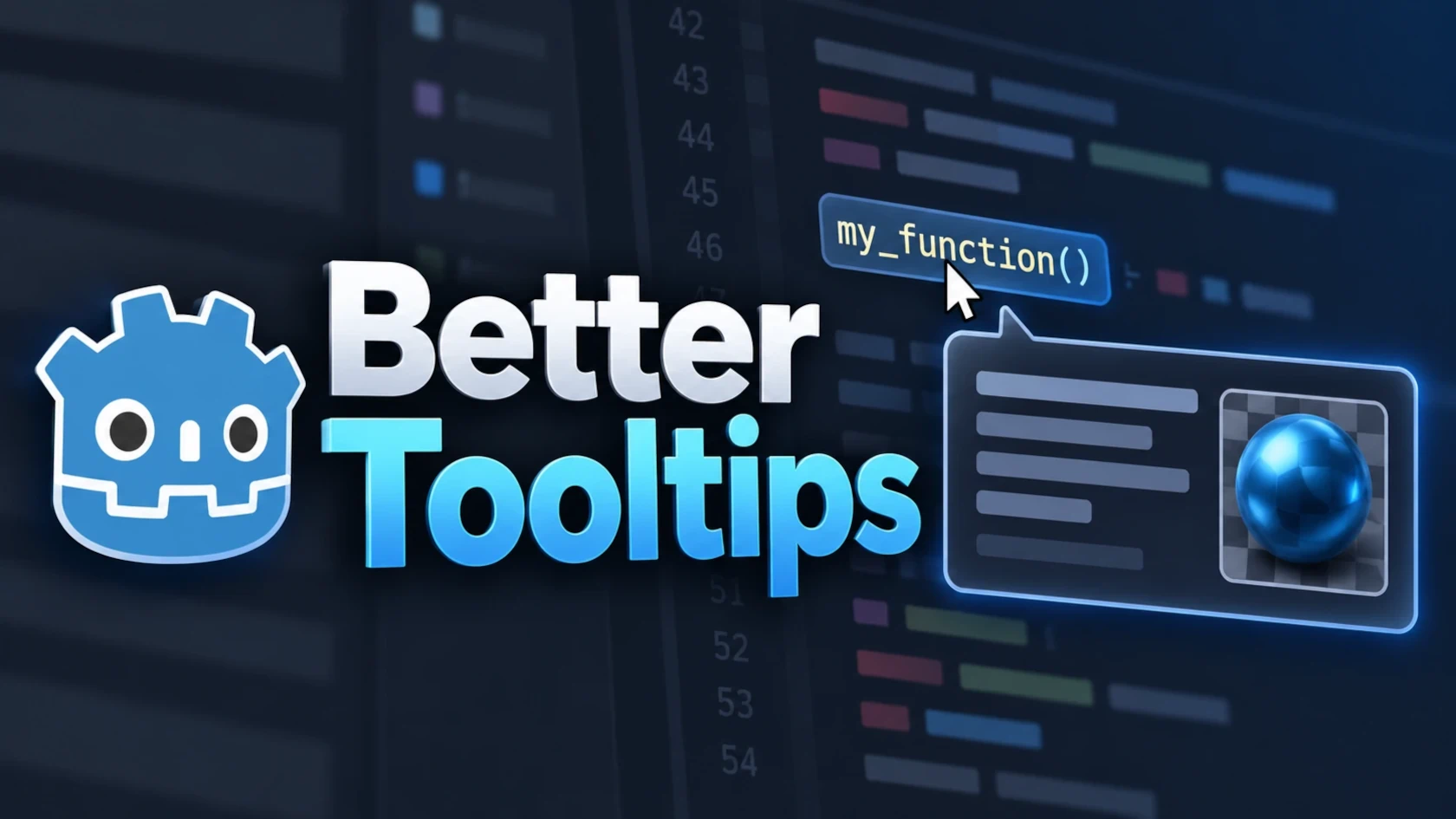
Better Tooltips
 1
1
by Tobias Lawrenz | MIT
Enhances the Godot editor with rich GDScript documentation tooltips, visual resource previews, and Markdown/text previews. Works directly in the FileSystem dock, Code Editor, and script navigation, with optional integration for **Quill-IDE** by Rayyan Aziz
Better Tooltips Better Tooltips extends Godot's editor tooltips with project documentation, visual resource previews, Markdown/text previews and additional context directly where you work. ( Note: The project was originally released as FileSystem Dock
Editor Only Nodes
0
by Admiia | MIT
A plugin For debug node organisation
Editor Only Nodes Allows you to mark nodes as Editor only or Debug Only. An Editor Only Node is visible in the editor viewport, but stripped from play and exported builds. A Debug Only Node is kept in the editor, when running from the editor, in debug
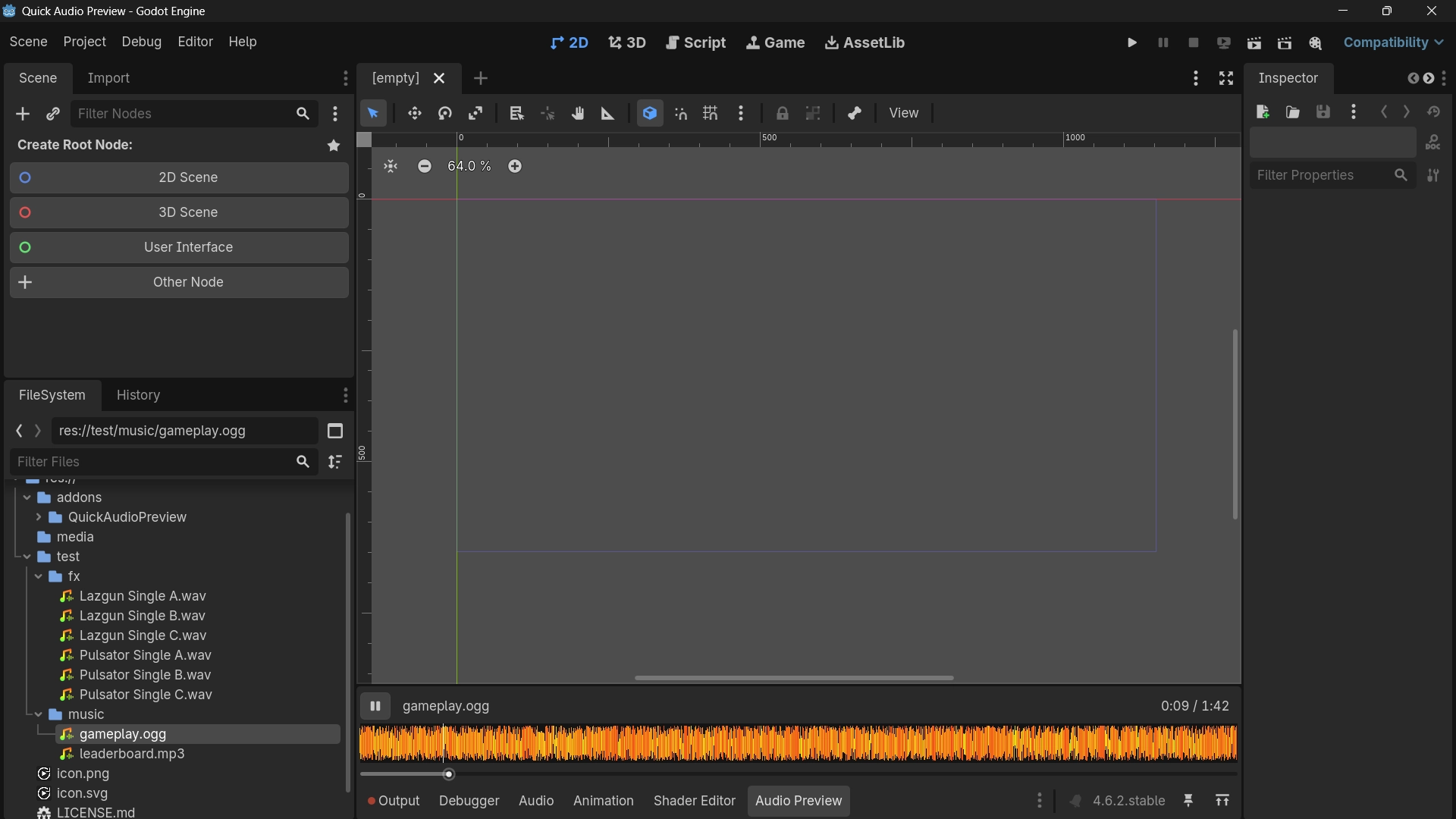
Quick Audio Preview
0
by Yuri Natividade | MIT
Click on a audio asset at the File System tree to play the audio. Click again, while playing, to pause the audio. Show a Audio Preview Panel to control the playback
Click on a audio asset at the File System tree to play the audio. Click again, while playing, to pause the audio. Show a Audio Preview Panel to control the playback

loading more results...