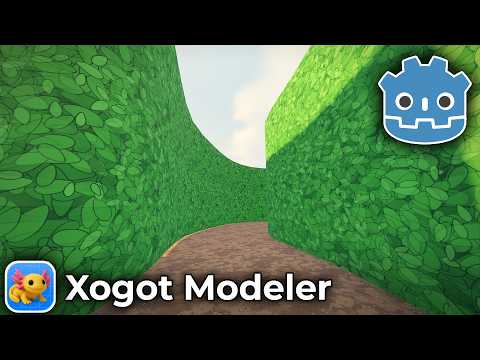
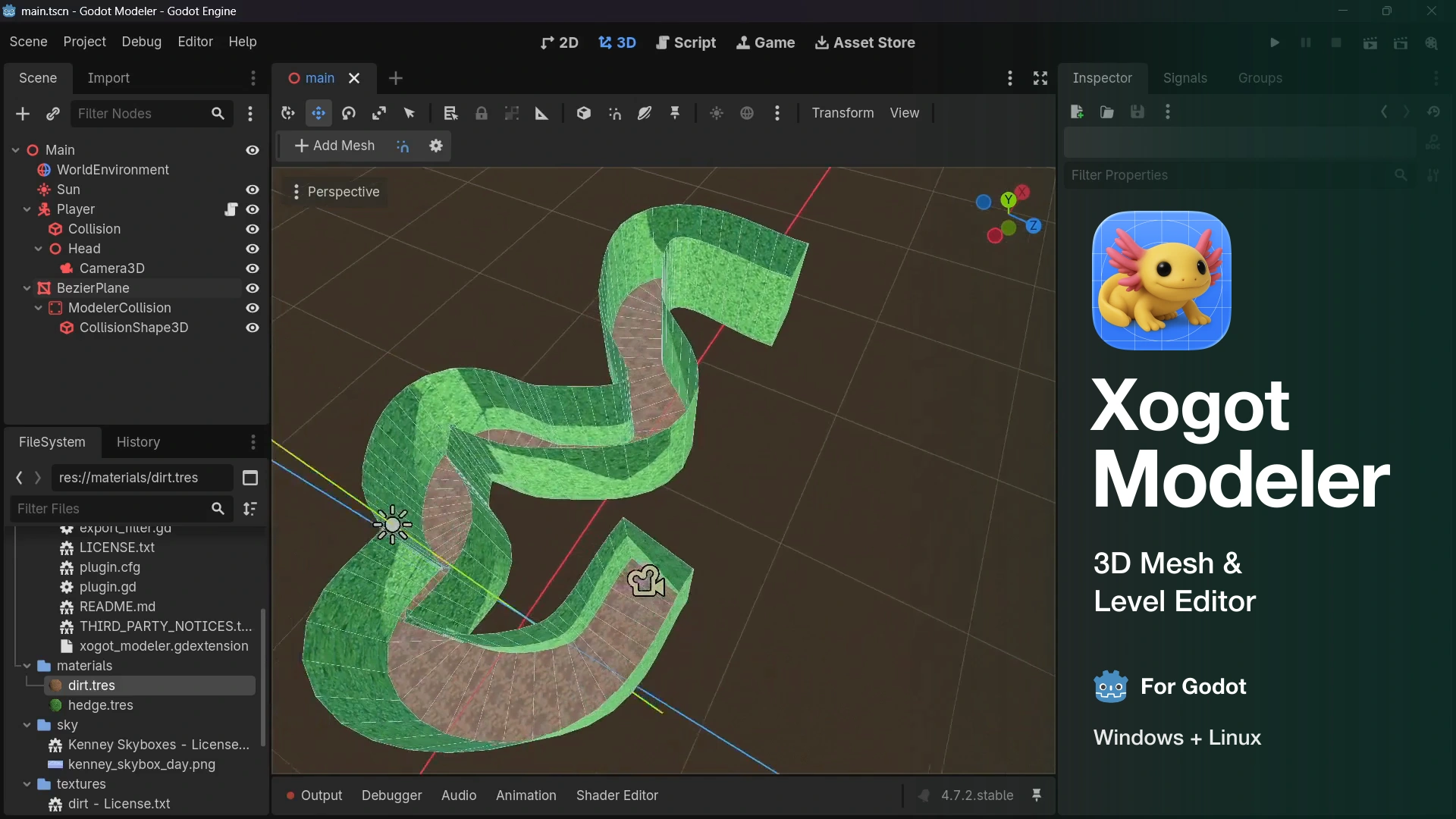
Xogot Modeler brings the 3D modeling tools from Xogot to the Godot editor on Windows and Linux. Block out levels, build greybox environments, and create simple props directly in your scene.
Start with an adjustable shape, draw a polygon outline, or sketch a Bézier path. Refine the geometry, apply materials, add collision, and test it in your game. Everything you create uses standard Godot meshes and collision nodes.
Start with shapes or draw your own
The shape palette includes 12 adjustable primitives: Cube, Prism, Sprite, Plane, Cylinder, Cone, Sphere, Pipe, Torus, Arch, Door, and Stairs.
Draw the base and height directly in the viewport, or Alt-click a shape to place it immediately. Adjust shape settings in the Inspector, including cylinder sides, arch thickness, and stair count or step height. Stairs can also follow a curve.
Poly Shape lets you draw a custom polygon outline, add holes, and extrude it into a mesh. Drawing planes can follow a surface or use a world plane, the camera, or a custom orientation.
Shape recipes remain available until you edit the mesh elements. You can rebuild from a recipe later; rebuilding replaces those element edits and can be undone.
Draw curved geometry with Bézier shapes
For curved layouts, use Bézier Plane to create a flat strip along a curve, or Bézier Block to give it height. Build winding paths, curved walls, roads, and maze layouts by placing control points and adjusting their tangent handles in the viewport.
Change the width, height, and subdivisions to suit your level. Reopen the shape to refine its path as you test the layout. For precise adjustments, move control points and handles with axis constraints and numeric distances.
Edit vertices, edges, and faces
Work in Object, Vertex, Edge, or Face mode, with editing tools for turning basic geometry into your level:
- Extrude faces or edges, including Shift-drag extrusion with the transform handles.
- Inset faces, bevel edges and corners, and adjust bevel segments and profile with a preview.
- Insert edge loops, subdivide geometry, bridge edges, and connect or weld vertices.
- Cut outlines into planar faces to create openings and new details.
- Detach or duplicate faces, mirror geometry, and merge objects.
- Use soft selection to reshape connected vertices with an adjustable falloff.
Loop, ring, border, material, color, and smoothing-group selections help you work on related parts of a mesh. Rectangle selection, X-ray display, hidden-element selection, grid snapping, and numeric adjustments support more precise edits.
Actions with adjustable settings let you refine the result before keeping it as one undo step. Experimental Boolean tools provide union, intersection, and subtraction operations; closed meshes give the best results.
Materials, colors, and shading
Apply different materials to individual faces, use vertex colors for variation, and control hard and smooth surfaces with smoothing groups.
The Paint panel includes material slots, color swatches, and an eyedropper. Save and load palettes to reuse materials and colors across scenes and projects. Vertex colors are visible when the assigned material uses them.
Align textures in the UV editor
The Mesh UV panel provides a 2D view of your mesh's texture coordinates, with selection shared between the UV editor and the 3D viewport.
- Move, rotate, and scale UVs with snapping or exact values.
- Use Auto UVs for projection that updates as geometry changes, or Manual UVs for a layout you control.
- Adjust tiling, rotation, offsets, and world-space projection.
- Group neighboring faces so textures continue across them.
- Use planar, box, or spherical projection, and stitch, split, or weld UVs.
- Adjust textures with the handles in the 3D viewport.
- Export a PNG UV template for painting textures in another application.
- Generate UV2 coordinates for baked lighting and inspect them in the UV editor.
Collision and gameplay volumes
Generate collision for your geometry and keep mesh or convex collision shapes in sync as you edit. Turn a mesh into an invisible collider for boundaries, or into an Area3D trigger volume for gameplay.
Collider and trigger geometry remains visible in the editor and is hidden when the game runs.
Standard Godot resources
Modeler creates MeshInstance3D nodes with ArrayMesh resources. The add-on runs in the editor and is excluded from exported games; the geometry does not require a custom runtime.
Use Make Editable to convert existing Godot primitives, imported meshes, or CSG geometry into editable copies. Save parts as scenes for reuse, and move scenes between the Godot add-on and Xogot.
Export meshes as native Godot mesh resources, OBJ, glTF/GLB, STL, or PLY. You can also strip Modeler's editable data while keeping the compiled mesh, materials, and collision.
Requirements and installation
- Godot 4.7 or later
- Windows 10 or later, x86_64 or arm64
- Linux x86_64 or arm64, with glibc 2.35 or later
The combined Asset Store download includes Windows and Linux binaries.
- Install the asset so
addons/xogot_modelersits alongsideproject.godot. - Open Project > Project Settings > Plugins and enable Xogot Modeler.
- Open the 3D editor and choose Add Mesh, or select an existing mesh and choose Make Editable.
Beta software and license
Xogot Modeler is proprietary beta software, free to use for personal, educational, and commercial projects during the applicable beta period. The full Xogot Modeler Beta License is included with the asset in LICENSE.txt.
Content you create can be published, distributed, and sold—including in commercial games and asset packs—without royalties or attribution to Xogot Modeler. These rights continue after the beta expires. Rights in any third-party material used in your content still apply.
Each build expires 30 days after its build date, as recorded in BUILD.txt. Continued use of the modeling tools requires a newer, unexpired build or a separately licensed release. Existing scenes and meshes keep working without the add-on. Future versions may require payment and use different license terms.
To view your version and expiry date or check for an update, open Project > Tools > Xogot Modeler — About / Beta Updates. Close Godot before replacing the add-on.
Third-party components are covered by their respective licenses in THIRD_PARTY_NOTICES.txt.
Documentation and feedback
Xogot Modeler is developed by Xibbon, Inc., the team behind Xogot.
Changelog for version 0.2.0-beta.2
2026-11-10 22:46:00
No changelog provided for this version.