Instance Log (for Godot)
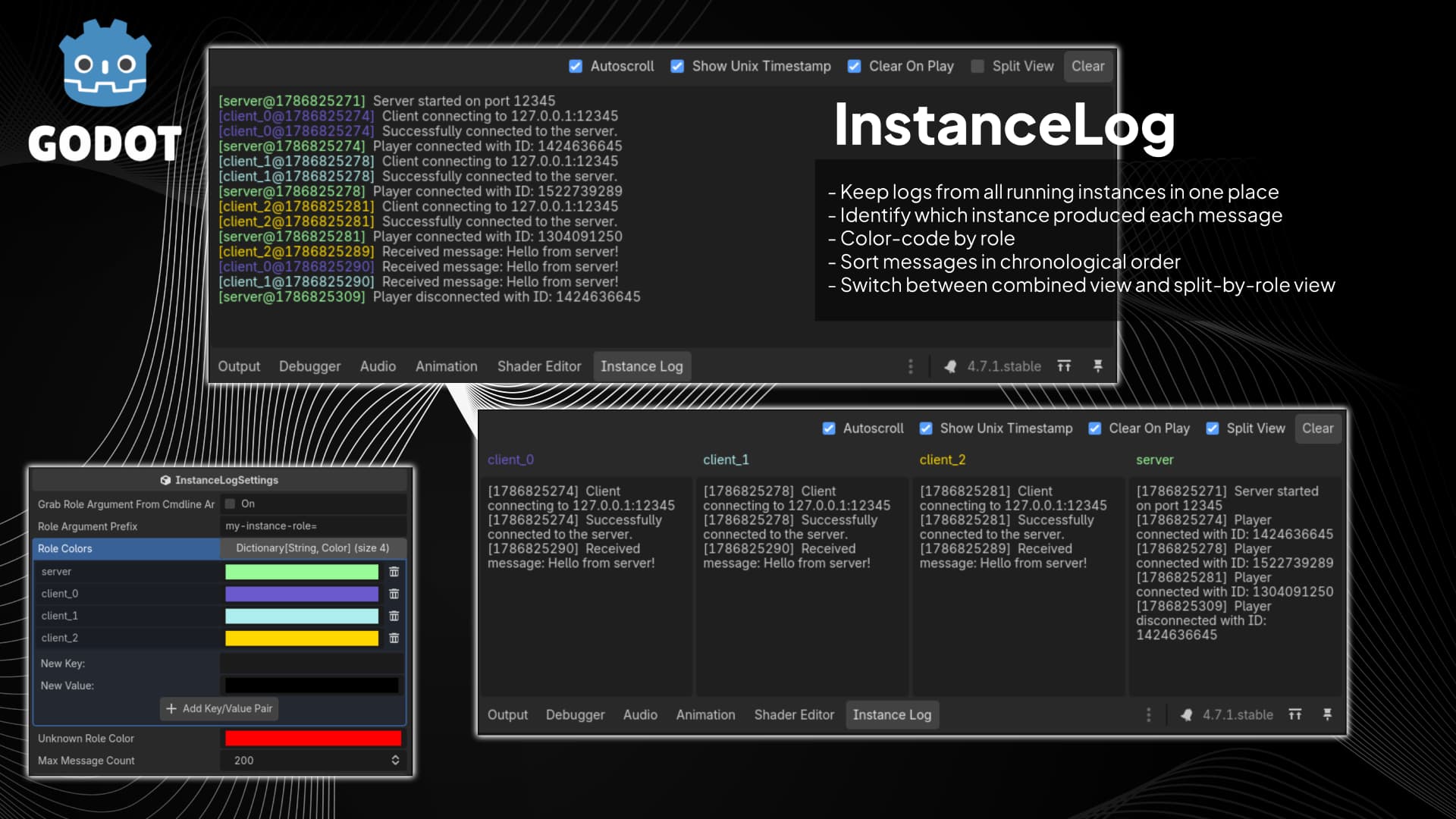
Instance Log is a Godot editor plugin for debugging projects that run multiple game instances at once (for example, host + clients in multiplayer tests).
It adds an Instance Log panel next to Godot's Output panel and groups each
message by instance role (like server, client_0, client_1) with color
tags.
Why use it?
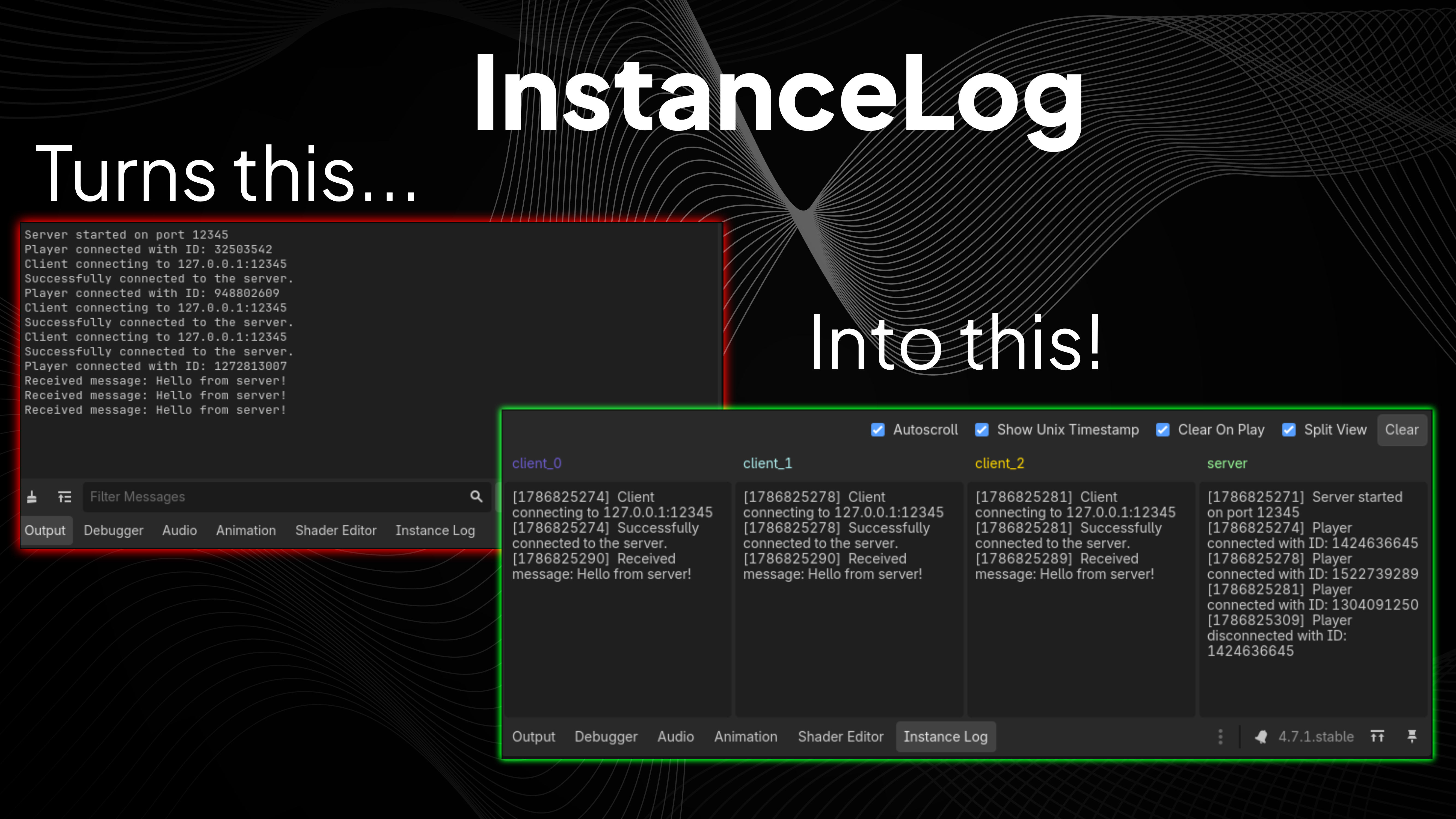
When you run several instances at the same time, regular print() output can
get hard to read quickly. It can be hard to tell which instance produced each
message, and the output can arrive in a non-chronological order, leaving you to
guess whether your networked code is working correctly.
Instance Log lets you:
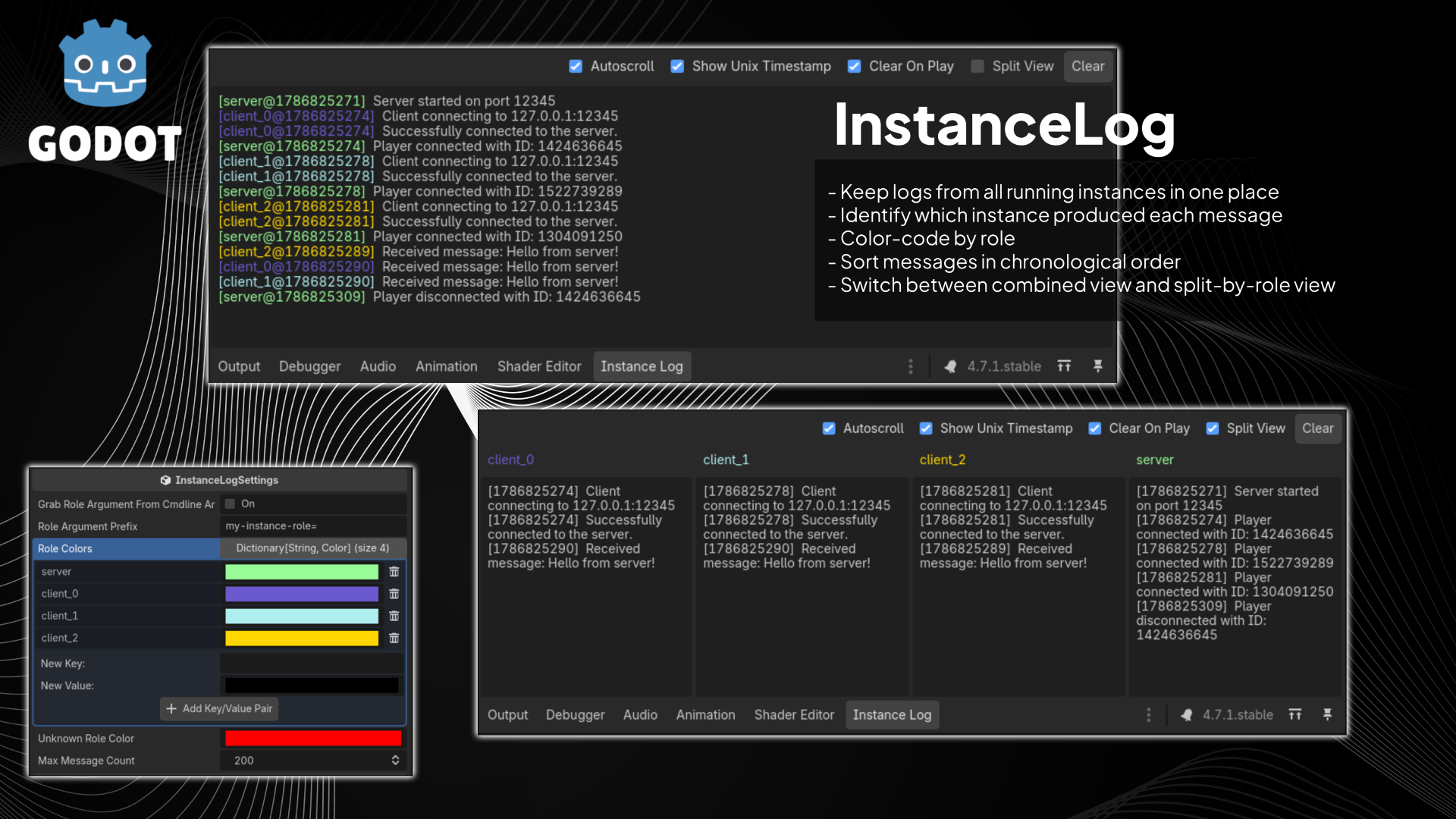
- Keep logs from all running instances in one place
- Identify which instance produced each message
- Color-code by role
- Sort messages in chronological order
- Switch between combined view and split-by-role view
Features
- Editor bottom panel named Instance Log
- Per-instance session tracking through
EditorDebuggerPlugin - Role-aware logging with configurable role colors
- Set role from code or command-line argument
- Toolbar controls:
- Autoscroll
- Show Unix Timestamp
- Clear On Play
- Split View
- Clear
- Bounded message history via max message count setting
Installation
- Copy the
addons/instance_logfolder into your Godot project. (Download from the repository as a .zip, or download from releases, the Asset Library, or the Asset Store.) - In Godot, open Project > Project Settings > Plugins.
- Enable Instance Log.
Quick start
1. Log through the plugin API
Use either class:
InstanceLog.print("Hello from this instance")
or shorthand:
IL.print("Hello from this instance")
2. Assign a role
2a. Set role from command-line argumentSet role manually from code:
IL.set_role_id("server")
# or
IL.set_role_id("client_0")
Then call IL.print(...) as usual.
You can configure the plugin to read a role from launch arguments.
By default, the role argument prefix is:
my-instance-role=
Examples:
godot --my-instance-role=server
godot --my-instance-role=client_0
In Godot, you can set launch arguments in: Debug > Customize Run Instances.
Important:
- Enable role parsing in the settings resource
(
_grab_role_argument_from_cmdline_args = true). - If role parsing is disabled, call
IL.set_role_id(...)manually.
3. Run multiple instances
Start host/client instances (or any multi-instance setup).
Open the Instance Log bottom panel to view tagged output from all connected instances.
Command-line role assignment settings
Plugin settings are stored in:
addons/instance_log/instance_log_settings.tres
Script class:
InstanceLogSettingsinaddons/instance_log/instance_log_settings.gd
Key fields:
_grab_role_argument_from_cmdline_args(bool)_role_argument_prefix(String)_role_colors(Dictionary[String, Color])_unknown_role_color(Color)_max_message_count(int)
API reference
InstanceLog
InstanceLog.print(message: Variant) -> void- Prints to normal Output and forwards the message to the Instance Log dock.
InstanceLog.set_role_id(role_id: String) -> void- Sets role used in tags.
IL (shorthand)
Does the same as InstanceLog but is shorter to type.
IL.print(message: String) -> voidIL.set_role_id(role_id: String) -> void
Example scene
This repository includes a sample scene under example/ that demonstrates
host/client logging.
Flow in the sample:
- Host sets
IL.set_role_id("server") - Client sets
IL.set_role_id("client_x") - Both sides call
IL.print(...) - Messages appear in the dock with role tags and colors
Clients can send a message to the host, and the host can send a message to all clients (with simulated network latency).
How it works
- Runtime code calls
InstanceLog.print(...), storing a unix time stamp along with the message. - If debugger is active, it forwards payload via
EngineDebugger.send_message("instance_log:print", [...]). - Editor-side debugger plugin captures
instance_log:*messages. - Dock receives signal, stores/sorts/prunes messages, and redraws the UI.
Notes
- Messages still appear in regular Output, so existing workflow is preserved.
- The dock only receives forwarded messages while connected through the debugger.
- Large max message counts may impact editor redraw performance. This is because the plugin redraws the entire message list on each new message, in order to keep messages sorted by timestamp. You may want to reduce the max message count if you have a lot of logs and notice lag in the editor.
Changelog for version v1.0.0
2026-08-15 21:16:58
No changelog provided for this version.