Let your AI assistant work directly inside the Godot editor.
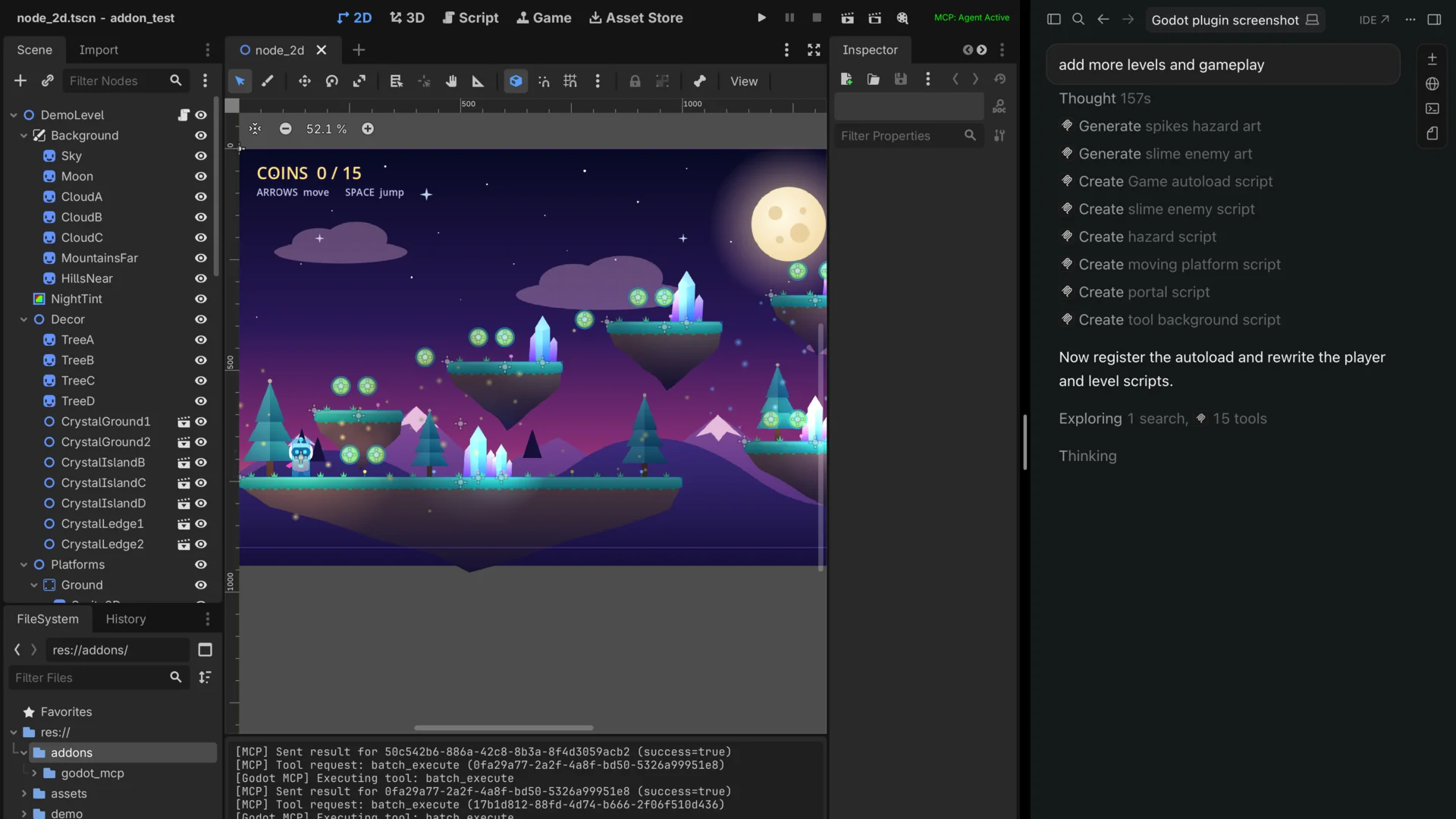
Godlink MCP connects Claude, Cursor, Windsurf and other AI assistants to Godot through the Model Context Protocol (MCP). No more copying code back and forth. Your assistant can see your project, build scenes, write scripts, run the game and check the result itself.
What you can ask it
- "Create a player scene with a CharacterBody2D, a sprite and a collision shape, and attach a movement script."
- "Run the game, hold the right arrow for two seconds and take a screenshot."
- "Why is my score label not updating? Check the errors and fix it."
- "Add a jump action to the input map and bind it to Space."
- "Undo the last three changes."
Features
- 75 tools for scenes, nodes, scripts, files, signals, resources and project settings
- Playtest loop: run your game, send keyboard and mouse input, inspect and call methods on live nodes, read runtime logs and take screenshots
- Knows what you selected: say "fix this" and it works on the node selected in your Scene dock
- Undo and redo for every AI change, including script edits and file operations
- Batch operations: apply many changes in one step, with everything rolled back if one fails
- Validation first: changes are checked before they are applied, so mistakes don't leave your project half-edited
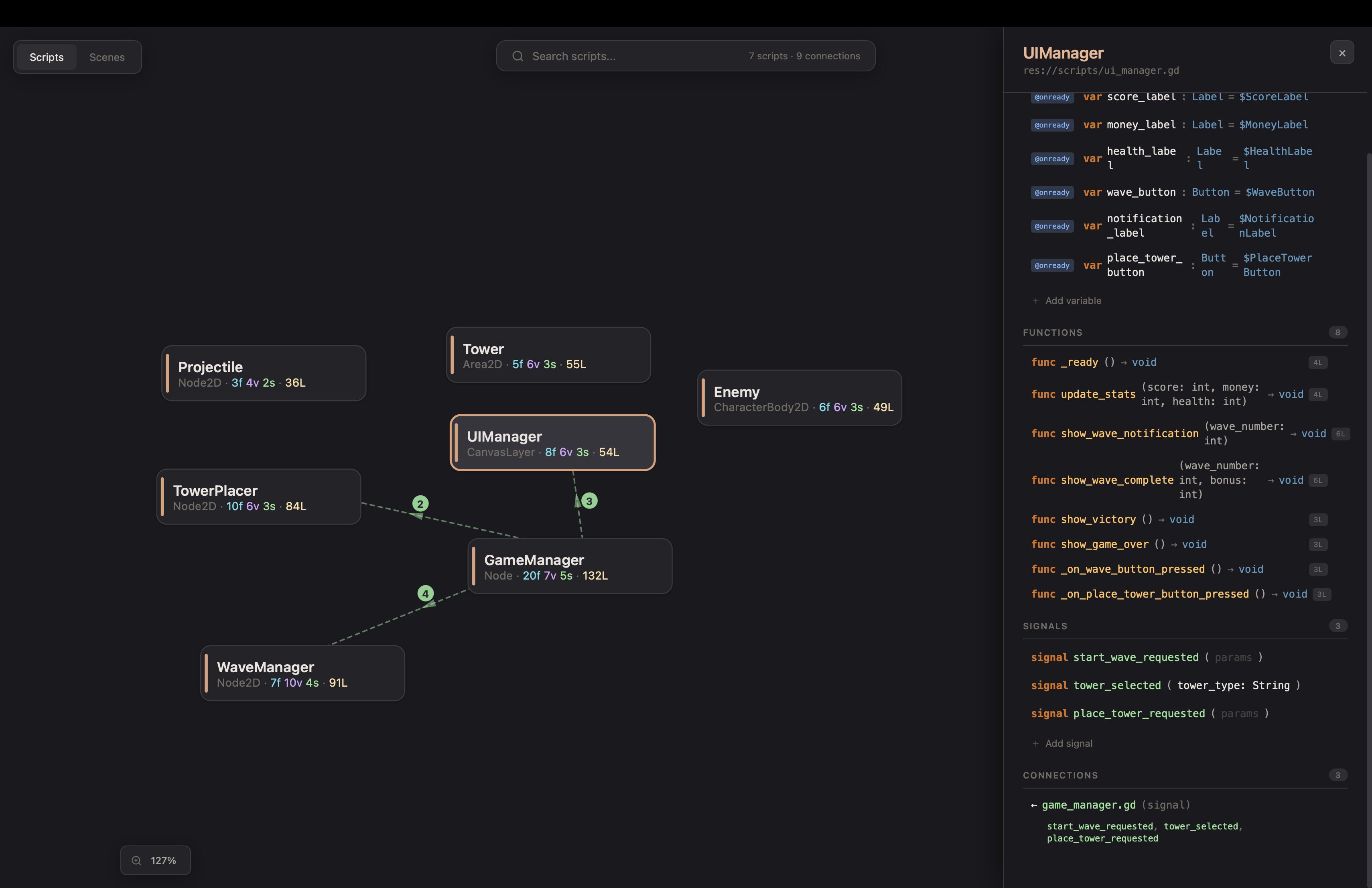
- Project map: an interactive browser view of your scripts, scenes and how they connect, with live editing
- Error reading: the assistant reads the Output panel and the debugger to fix its own mistakes
Setup
This plugin is one of two parts. The other part is a small server that your AI client runs.
1. Install Node.js (LTS) from nodejs.org. It's a normal installer.
2. Enable this plugin under Project → Project Settings → Plugins. It appears there as Godot MCP.
3. Add the server to your AI client.
Claude Code:
claude mcp add godot -- npx -y godot-mcp-server
Claude Desktop, Cursor and most other clients (add to the MCP config file):
{
  "mcpServers": {
    "godot": {
      "command": "npx",
      "args": ["-y", "godot-mcp-server"]
    }
  }
}
On Windows, use "command": "cmd" and "args": ["/c", "npx", "-y", "godot-mcp-server"].
4. Restart your AI client and your Godot project. When MCP Connected shows in green in the top-right corner of the editor, you're ready.
Full instructions for every client are on GitHub.
Good to know
- Everything runs locally on your machine. Nothing is sent anywhere except to the AI client you already use.
- One Godot editor at a time.
- AI won't build a whole game alone. It's great at scripting, debugging, scene setup and repetitive work, and still weaker at complex UI layouts.
Found a bug or have an idea? Open an issue on GitHub. If Godlink helps you, a review here helps other developers find it.
Changelog for version 0.6.0
2026-10-17 07:17:10
No changelog provided for this version.