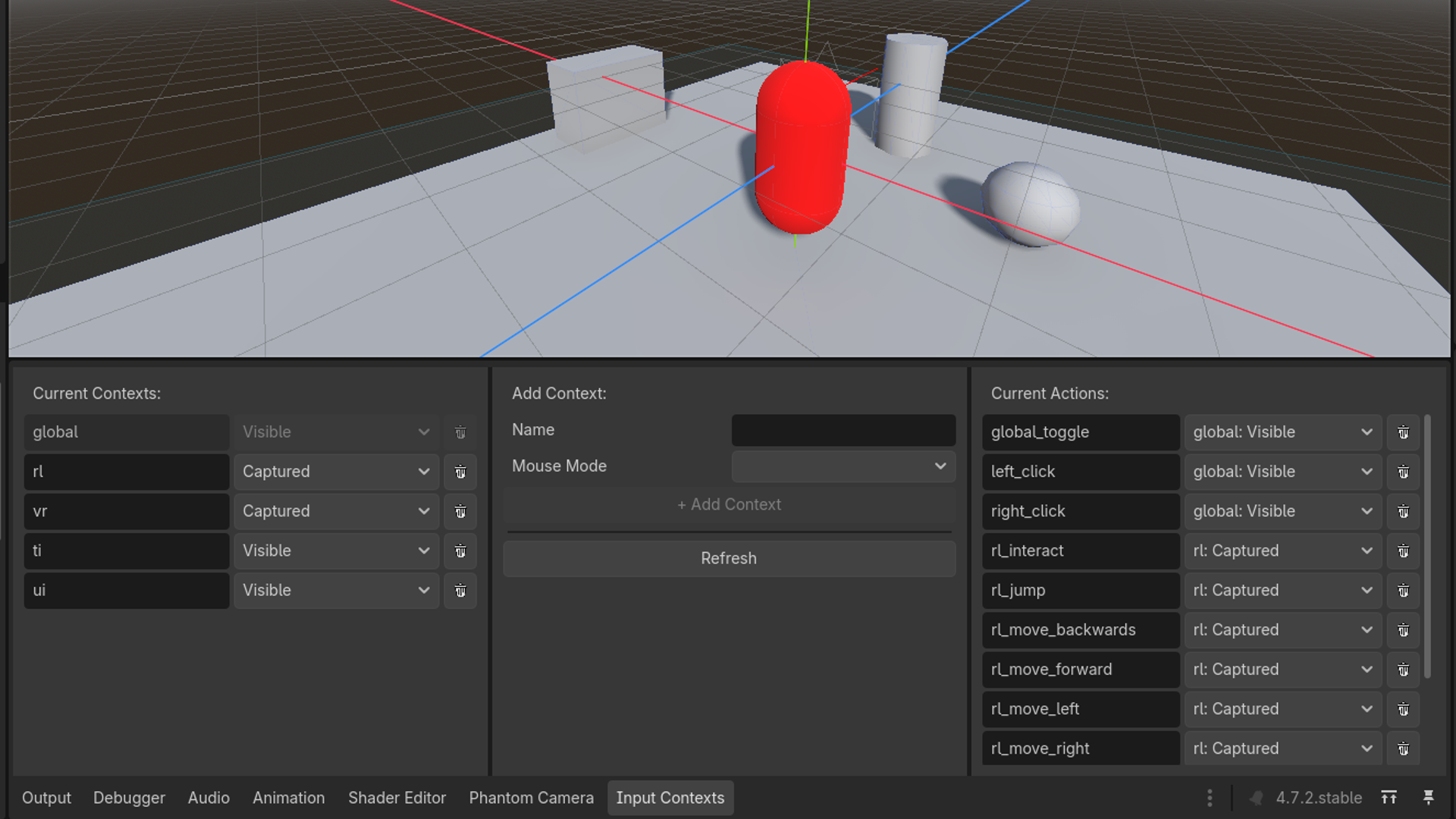
Quacky Input Contexts
Allows the creation of custom input mapping contexts, linking these to a mouse mode, and linking the input actions, defined via the input map, to an input mapping context. Only those inputs belonging to the top-level input mapping context on the stack are ultimately processed.
Installation
- Copy the folder 'addons/quacky_input_contexts' into your project's 'addons/'-folder (or install with AssetLib).
- Project -> Project Settings -> Plugins -> Enable Plugin.
Usage
- Locate the "Input Contexts" panel in the bottom dock.
- Add new InputMappingContexts: Enter a name and MouseMode.
- Add InputActions via the InputMap in the Project Settings (if not done already).
- Go back to the "Input Contexts" panel and click "Refresh" if the actions are not yet listed under "Current Actions"
- Under "Current Actions", you can now assign an InputMappingContext to each action.
- Use the autoload "InputManager" in your project.
Type Safety
The plugin automatically creates two classes to ensure type safety.
- InputContexts: Each InputMappingContext you create receives a const variable in the InputContexts file, with the name written in uppercase.
- e.g.:
InputContexts.GLOBAL
- e.g.:
- InputActions: Each custom action receives a const variable in the InputActions file, with the name being the same as the action name – case sensitivity is important here.
- e.g.:
InputActions.gameplay_jump
- e.g.:
Input Query
If you now want to make an input query in a script, such as: Input.is_action_pressed(action: StringName), you do instead:
InputManager.is_action_pressed(action: String) with action == InputActions.(...)
e.g.: InputManager.is_action_pressed(InputActions.gameplay_jump)
Remember, Input queries via InputManager can only return true if the InputMappingContext of the action is at the very top of the stack!
InputManager Input Functions
The following functions and their native Input.Function equivalents are available for this purpose:
InputManager.event_is_action_pressed(event, action)
= event.is_action_pressed(action)
InputManager.is_action_pressed(action) = Input.is_action_pressed(action)InputManager.is_action_just_pressed(action) = Input.is_action_just_pressed(action)InputManager.is_action_just_released(action) = Input.is_action_just_released(action)
InputMappingContext Stack
To manage InputMappingContexts on the stack, the following functions are available:
InputManager.enable_context(context)InputManager.disable_context(context)- Disables only if 'context' is the topmost element of the stack.- e.g.:
InputManager.enable_context(InputContexts.GAMEPLAY)
- e.g.:
To get an overview of the current active_contexts stack, you can use the following signal from the "InputManager" autoload:
signal active_contexts_changed(active_contexts: Array[int], id_to_imc_dict: Dictionary[int, IMC])
Alternatively, you can access it directly: InputManager.active_contexts: Array[int]
Requirements
- Godot 4.x (tested with 4.7.2)
License
MIT, see LICENSE
Changelog for version v1.0.1
2026-10-01 23:49:59
No changelog provided for this version.