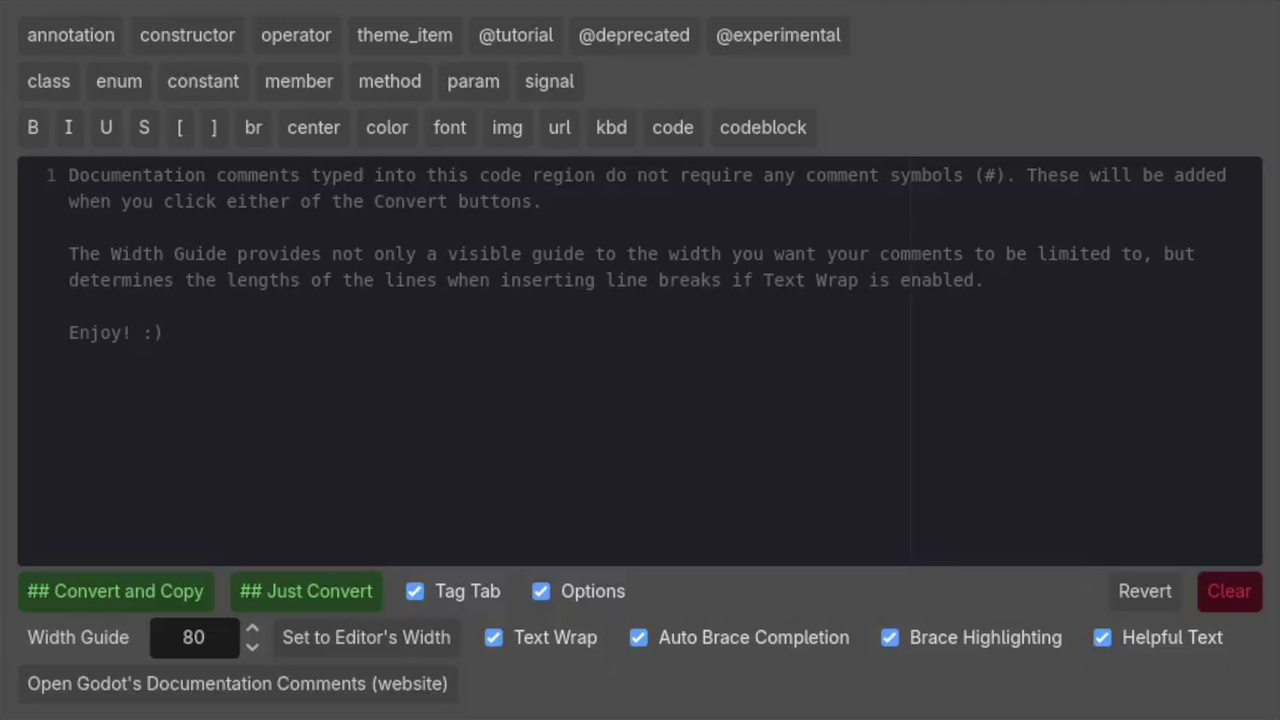
Documentation Comment Helper
This plugin for Godot 4.4 and later aids in writing documentation comments for your code.
About Documentation Comments
A documentation comment is any comment in GDScript that starts with two pound signs: ##. These types of comments are interpreted by the editor into the helpful popups you get when you hover over methods and variables. They are also automatically entered into the documentation in the editor.
To learn more, check out Godot's official documentation.
Features
The two features provided by this plugin are the Convert Lines option and the Documentation Comment Helper window.
Convert Lines to Documentation
This is the simpler of the two features in this plugin.
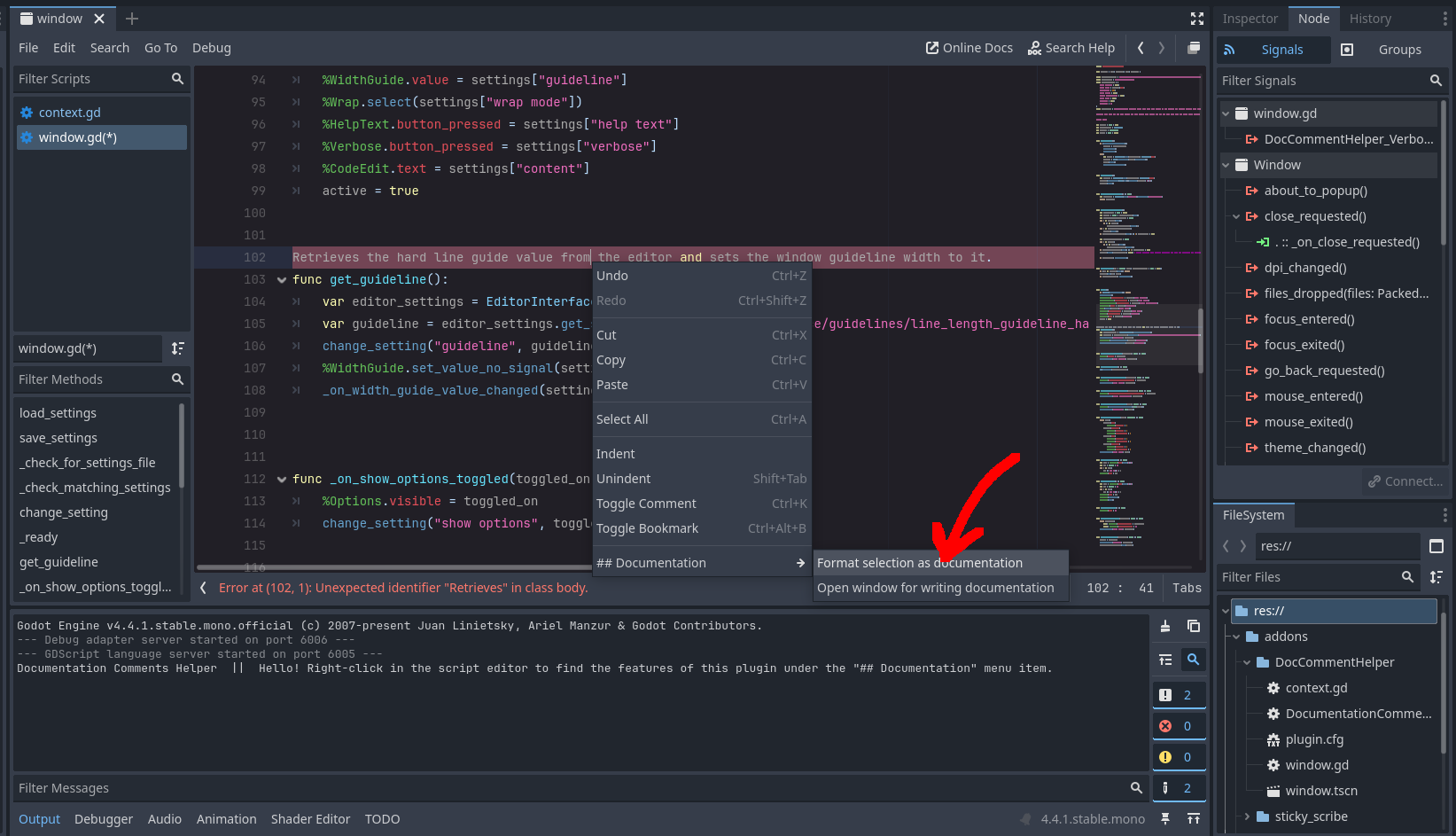
Select text in the script editor, right-click, and go to ## Documentation/Format selection as documentation. The lines you have selected will be prefixed with ## automatically.
Documentation Comment Helper
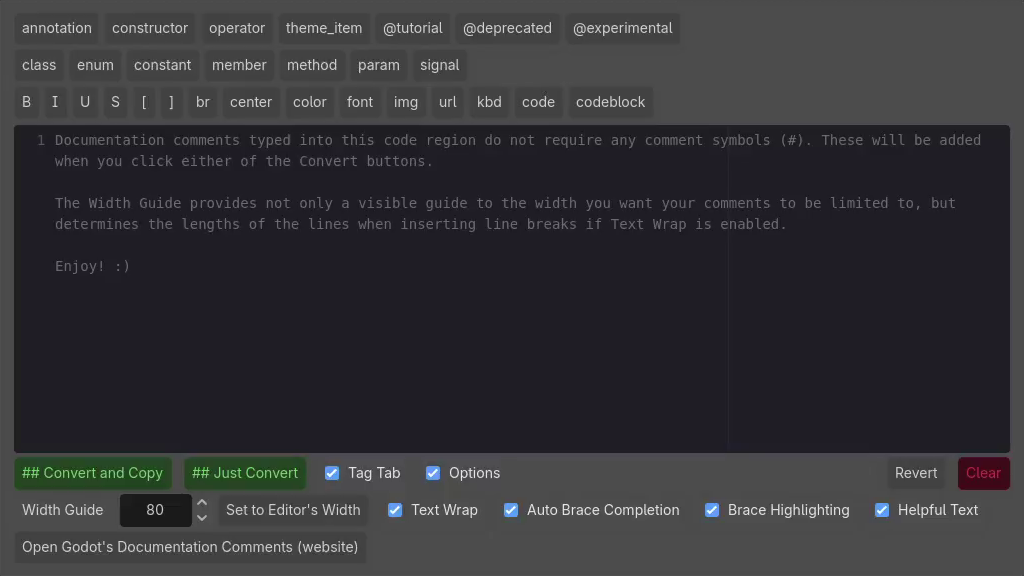
This feature opens a window that aids in writing your documentation. To open the window, you can either right-click in your script editor and go to ## Documentation/Open window for writing documentation, or you can go to Project/Tools/Documentation Comment Helper in the menu at the top of your Godot editor window.
Options
When you start the Documentation Comment Helper (let's just call it the Helper) for the first time, every option that can be toggled should already be toggled on. If you want to hide the options at the bottom, toggle the Show Options checkbox; or if you want to hide the buttons at the top, toggle the Tag Tab checkbox.
Tag Tab (Added in v1.3.1) The Tag Tab provides buttons for inserting the formatting tags that Godot uses in its documentation comments. They're very similar to BBCode. These buttons will either insert the tag, wrap your selected text in the tag, or add the tag with some boilerplate text pre-selected for immediate editing.
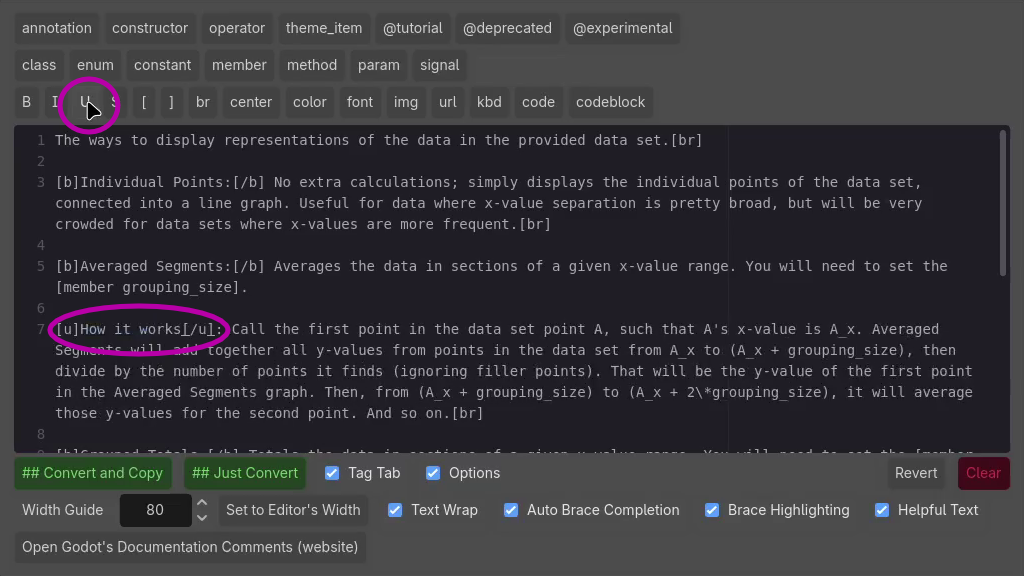
Width Guide The Width Guide provides a visual reminder of where you might want to add line breaks to your documentation. It also works with Text Wrap (see below) to set the lengths of the lines of your documentation.
Clicking the "Set to Editor's Width" button will match the guideline in the script editor.
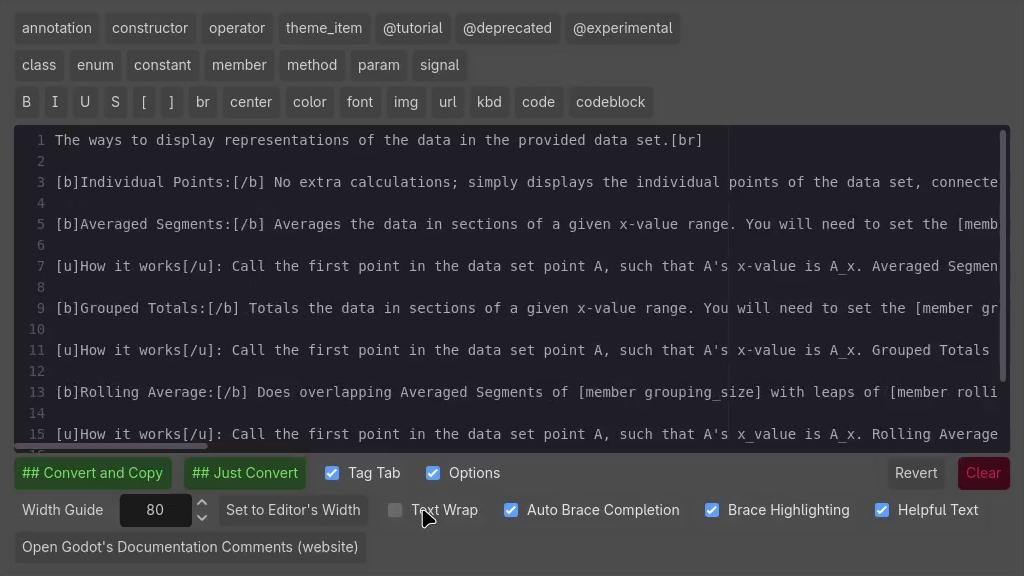
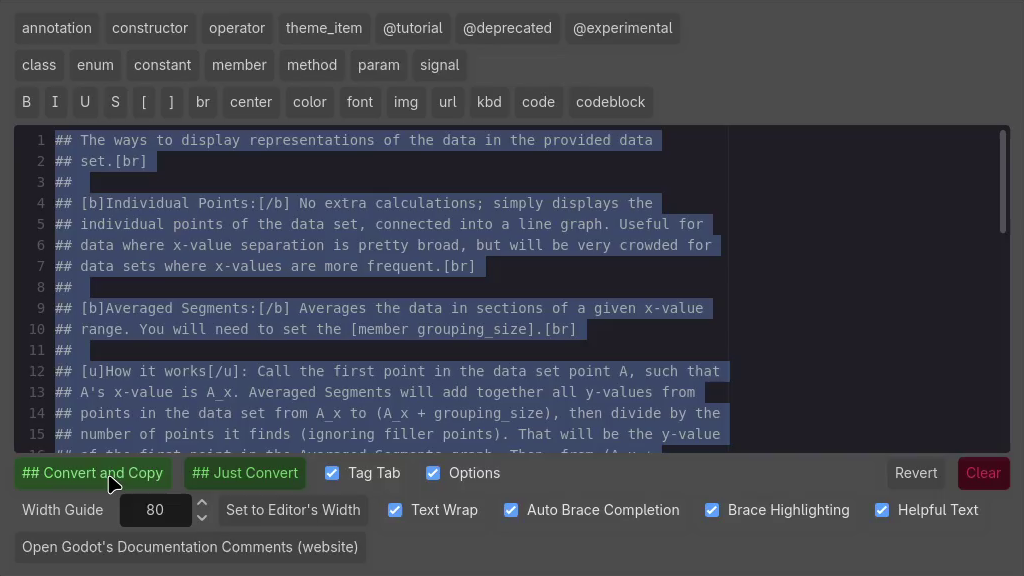
Text Wrap (Added in v1.4) The Text Wrap option does more than just provide the visual of wrapping the text in the Helper's input box. When toggled on, after hitting one of the Convert buttons, the text will be given line breaks automatically, to match the Width Guide!
Text Wrap disabled:
Text Wrap enabled, after clicking ## Convert and Copy:
Changelog for version v1.4
2026-07-15 23:48:12
No changelog provided for this version.