Mobile Caret for Godot 4
Touch-friendly text carets and selection handles for Godot 4, in the style of Android. Drop it into your project and every LineEdit and TextEdit gets draggable handles, with no per-scene setup.
Motivation
Godot's built-in caret is a thin line that is hard to see and almost impossible to place precisely with a finger. This plugin adds large, easy-to-grab handles so editing text on a phone feels natural.
Features
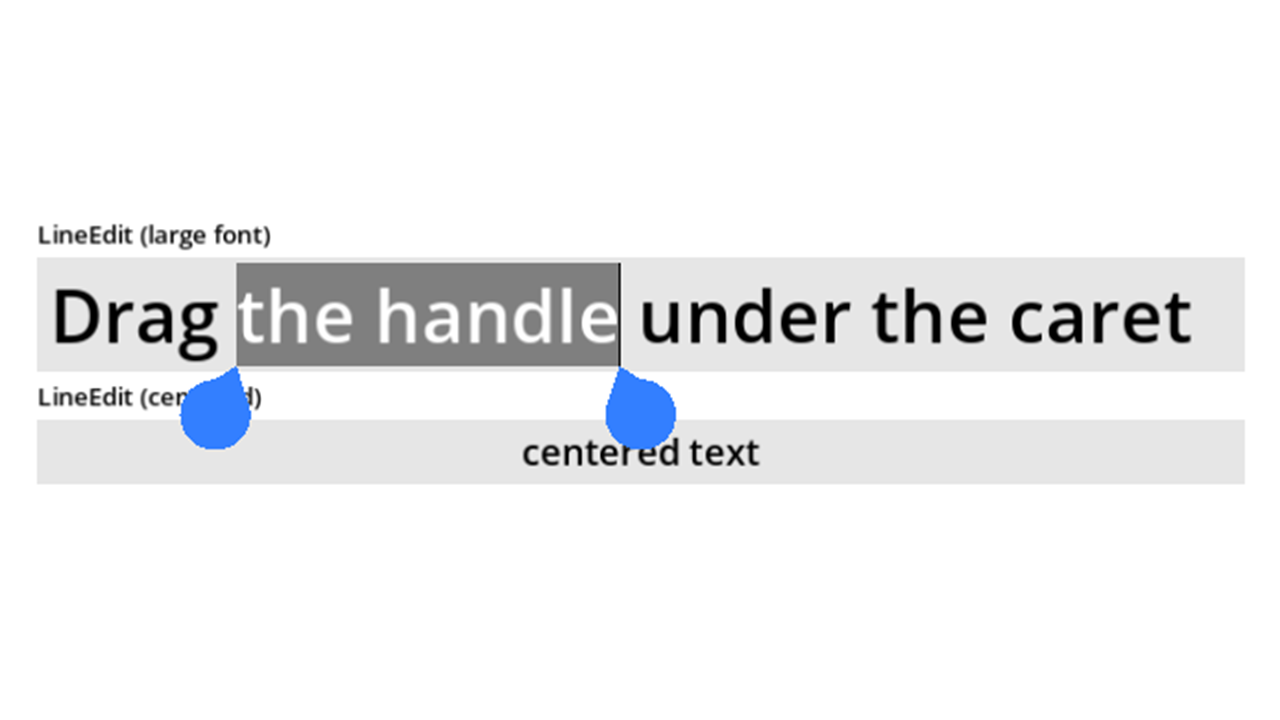
- Draggable caret handle: a handle appears under the caret; drag it to move the caret.
- Selection handles: when text is selected, two handles mark the start and end. Drag either one to adjust the selection, and they can cross over each other.
- Long-press to select a word.
- Smooth dragging: the handle follows your finger while the caret snaps to the nearest character. Dragging past the edge of a control scrolls it.
- Floating toolbar (optional): an Android-style Cut / Copy / Paste / Select all bar above the selection. It lives in its own folder, nothing else depends on it, and it can be switched on and off from code.
- Auto-fading caret handle: the single caret handle fades out after a few seconds of inactivity and returns when you tap or move the caret. Selection handles stay visible.
- Native caret hiding: optionally hide Godot's own thin caret while a handle is shown, or only while dragging.
- Works with what you already have: supports
LineEdit,TextEdit,CodeEditand theLineEditinside aSpinBox(including wrapped text, scrolling, gutters, alignment, clear buttons, secret fields and different font sizes) without changing your scenes. The text control keeps focus, so the on-screen keyboard stays up while you drag. - Right-to-left and mixed-direction text: Hebrew, Arabic and mixed text get correctly placed handles, in left-to-right and right-to-left layouts.
- Windows and SubViewports: controls in a separate
Window, an embedded window or aSubViewportget their handles and toolbar inside their own viewport. - Multiple carets: a
TextEditwith several carets gets handles for every caret, each draggable on its own. - Customizable: use your own handle texture, size and color.
Installation
- Download the repository (or use the Asset Library) and copy
addons/MobileCaretinto your project'saddons/folder. - Open Project Settings > Plugins and enable MobileCaret. This registers two autoloads:
MobileCaret(the handles) andMobileCaretToolbar(the optional toolbar).
That's it. Run your project and focus any LineEdit or TextEdit.
If you prefer not to use the plugin, add addons/MobileCaret/CaretsController/carets_controller.tscn (and, if you want the toolbar, addons/MobileCaret/Toolbar/caret_toolbar.tscn) as autoloads yourself.
An example scene is included at addons/MobileCaret/Examples/example_scene.tscn.
Usage
- Move the caret: drag the handle under the caret.
- Select text: long-press a word (or double-tap). Two handles appear; drag them to adjust the selection.
- Replace or collapse a selection: just type, or tap elsewhere, as usual.
Settings
Select the MobileCaret autoload (or carets_controller node) and adjust its exported properties, or set them from code, for example MobileCaret.handle_color = Color.ORANGE.
Look
| Property | Description |
|---|---|
texture_caret |
Optional custom handle texture. Leave empty for the default teardrop. |
handle_size_mm |
Physical size of a handle in millimeters (default 7 × 8). The handle keeps this size on screen whatever the resolution, aspect ratio, stretch mode or screen DPI, and the hit margin, drag threshold and edge-scroll zones scale with it. Set to (0, 0) to use handle_size instead. |
handle_size |
Size of a handle in logical pixels. Used when handle_size_mm is (0, 0). |
handle_color |
Color of the default teardrop. |
caret_texture_offset |
Extra offset applied to the handles. |
hit_margin |
Extra pixels around a handle that still count as touching it. |
Gestures
| Property | Description |
|---|---|
long_press_seconds |
How long to press to select a word. 0 disables long-press. |
Fade
| Property | Description |
|---|---|
caret_fade_delay |
Seconds of inactivity before the caret handle fades out. 0 or less disables fading. |
caret_fade_duration |
How long the fade takes, in seconds. |
Native caret
| Property | Description |
|---|---|
hide_native_caret |
Hide Godot's thin caret whenever a handle is shown. |
hide_native_caret_while_dragging |
Hide it only while a handle is being dragged (on by default). |
If a control already has its own caret_color override, it is restored exactly when the native caret is shown again.
Floating toolbar
The toolbar (addons/MobileCaret/Toolbar) is a separate autoload, MobileCaretToolbar. Nothing in the handles' code depends on it: remove its autoload, or switch it off in code, and everything else works the same. If the MobileCaret controller is present the toolbar also listens to its handle_tapped signal; without it the toolbar still works from focus and selection alone. It works for LineEdit, TextEdit, CodeEdit, the LineEdit inside a SpinBox and selectable RichTextLabels, in the main window and in any other Window or SubViewport. A RichTextLabel gets the toolbar only: Godot cannot set its selection from code, so there are no selection handles for it.
- It appears above a selection once the selection has settled and no mouse button is held, so it stays out of the way while you drag a handle. If there is no room above, it goes below the selection. It keeps its physical size, only shrinking when a small viewport is too narrow for it.
- It only offers what applies: Cut and Paste need an editable control, Paste needs something on the clipboard, and Select all is hidden when everything is already selected. A password field (
secret) never offers Copy, Cut or Share. - Tapping a caret handle (without dragging) shows Paste / Select all at the caret.
- Tapping inside an existing selection keeps the selection and shows or hides the toolbar, like Android.
- After Copy the selection stays and the toolbar hides until the selection changes (or you tap it). Typing or moving the caret hides it too.
- The ··· button opens an overflow menu with Undo, Redo and (optionally) Share; ‹ goes back.
Control it from code:
MobileCaretToolbar.enabled = false      # switch it off, and back on with true
MobileCaretToolbar.show_for_caret()     # show Paste / Select all at the caret now
MobileCaretToolbar.hide_toolbar()       # hide it until the selection changes
MobileCaretToolbar.action_pressed.connect(func(action): print(action))  # "cut", "copy", "paste", "select_all", "undo", "redo", "share"

# The Share button only shows when you turn it on; the toolbar cannot share by itself.
MobileCaretToolbar.show_share = true
MobileCaretToolbar.share_requested.connect(func(text): print("share: ", text))
| Property | Description |
|---|---|
enabled |
Master switch. |
show_cut, show_copy, show_paste, show_select_all |
Turn individual buttons off. |
text_cut, text_copy, text_paste, text_select_all |
Button labels (for localization). |
show_overflow, show_undo, show_redo, show_share |
The overflow menu and its entries (Share is off by default). |
text_undo, text_redo, text_share, text_more, text_back |
Labels for the overflow menu. |
tap_selection_toggles_toolbar |
Tapping inside a selection keeps it and toggles the toolbar (default on). Turn off to let such taps collapse the selection as usual. |
height_mm |
Height of the bar in millimeters (default 9). Like the handles it keeps this physical size on any screen. |
gap_mm |
Gap between the bar and the selection. |
background_color, text_color, pressed_color |
Colors. |
show_delay |
Seconds the selection must stay unchanged before the toolbar shows (default 0.2). |
Bug reports, ideas and pull requests are welcome.
Changelog for version 1.0.1
2026-10-04 07:43:06
No changelog provided for this version.