Description
Changelog
Reviews (0)
Features
- Brush / spray viewpoint rendered by camera -> resembles individual particles
- Achieves realistic and fine painting across multiple meshes
- No PhysicsServer or CollisionShapes needed. (Relies fully on 3D rendering techniques)
- Works at runtime & in editor
- Up to 8 overlay texture atlases per scene
- Arbitrary amount of meshes per atlas
- Arbitrary brush shapes provided by an image
- Resolution and other performance settings
For bug reports, feature requests and questions, please open an issue on GitHub
Usage
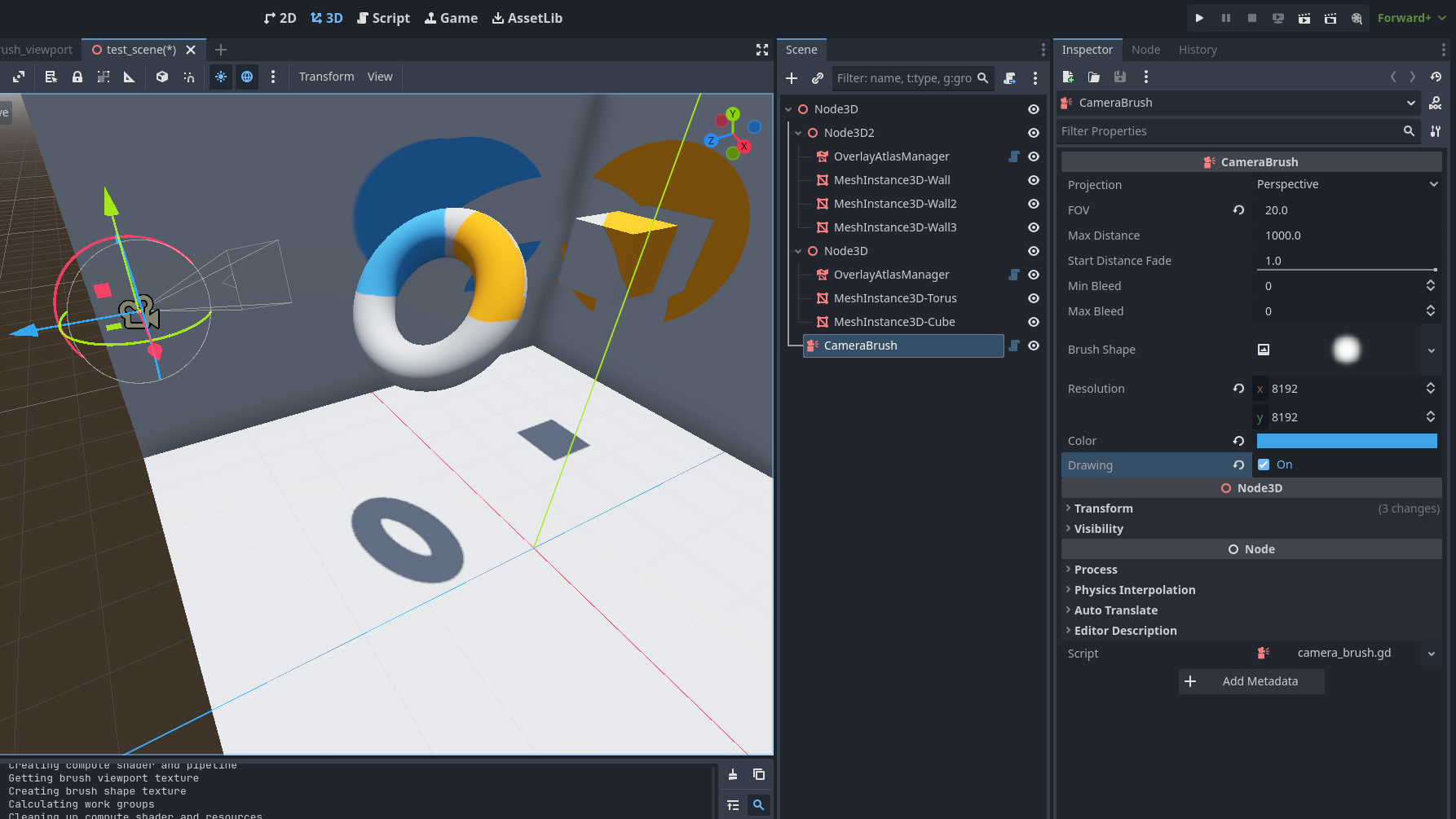
The addon adds two nodes: The OverlayAtlasManager for the management of materials and textures and the CameraBrush for painting onto the textures.
For an example configuration open the demo scene
Overlay Atlas Creation
- Add OverlayAtlasManager Node as sibling or parent to MeshInstance3D nodes.
- Use hierarchy for compartmentalization of atlases.
- All meshes need to have the UV2 unwrapped as described here.
- Set the wanted texture size.
- Set the shader file used for the overlay material. See Appearance of the Overlay.
- Press "Generate atlas and apply shader" to generate the atlas packing and apply the overlay shader material to all materials.
- Alternatively, call the apply() method in a script.
- Alternatively, select Apply on ready. Useful for MeshInstance3Ds inside PackedScenes.
Camera Brush
- Add a CameraBrush Node to the scene. Make it a child of the camera for example, to make it moved by the player.
- The Projection mode controls the type of the brush:
- Perspective: Paint spreads, e.g. spray cans
- Orthogonal: Brush size stays constant, e.g. pencils
- FOV/Size: The size of the brush
- Max Distance: The range of the brush. (Affects performance)
- Start Distance Fade: At which distance the brush should start to fade to full transparency.
- Bleed: How many texels should be drawn in the atlas around the texels rendered by the CameraBrush. Increase to reduce artifacts. (Affects performance)
- Brush Shape: Image of the brush shape. The R Channel dictates, how much paint is applied.
- Resolution: Resolution of the CameraBrush render target. Increase or decrease until holes in the painting disappear. (Affects performance)
- Color: Color of the brush. Opacity can be set.
- Draw Speed: The rate at which the paint is applied.
- Drawing: If enabled the brush renders and paint is applied. Can also be set from script.
Appearance of the Overlay
- Duplicate the overlay_template.gdshader file.
- Insert your custom shader code at the placeholder.
Changelog for version v1.3.3
2026-02-17 19:12:51
No changelog provided for this version.