Set and See Localization Key
Acknowledgments
Thanks to Banana Holograma for their script to read CSV files from the Godot Essentials repository, specifically from the file_manager.gd file.
Thanks to Hugo Locurcio and contributorss for the icons: Reload.svg, AnimationTracklist.svg, CodeHighlighter.svg, CollapseTree.svg, CombineLines.svg, DebugStep.svg, ExpandTree.svg, FontSize.svg, AABB.svg and AutoPlay.svg. Theses are from Godot editor icons.
Description
TIP
To properly view the documentation, I recommend checking it in the repository.
- This is a plugin developed for Godot. It works with version 4.7.1 and later.
VERSION COMPATIBILITY:
Plugin Version 1.1.1 > 1.3 1.4 1.4.1 Godot Version 4.5 4.6 4.7.1 > Latest version - This plugin is related to the localization phase for multiple languages in a Godot project, using CSV files and specifically their reference keys.
What are CSV files?
CSV files are a type of file frequently used for video game translations. They consist of a table where the first column contains the reference keys, and the other columns correspond to each language. They are known as spreadsheets. They are commonly created in office suites such as LibreOffice. When saving the file, make sure to save it with the ".csv" extension and in "UTF-8" format.
More info in the Godot documentation: Localization using spreadsheets

- By default, in Godot, if a reference key is placed in a Label, the game will access and set the value for the corresponding language when it starts. Currently, there is no functionality in the editor to place these keys. This plugin addresses that need.

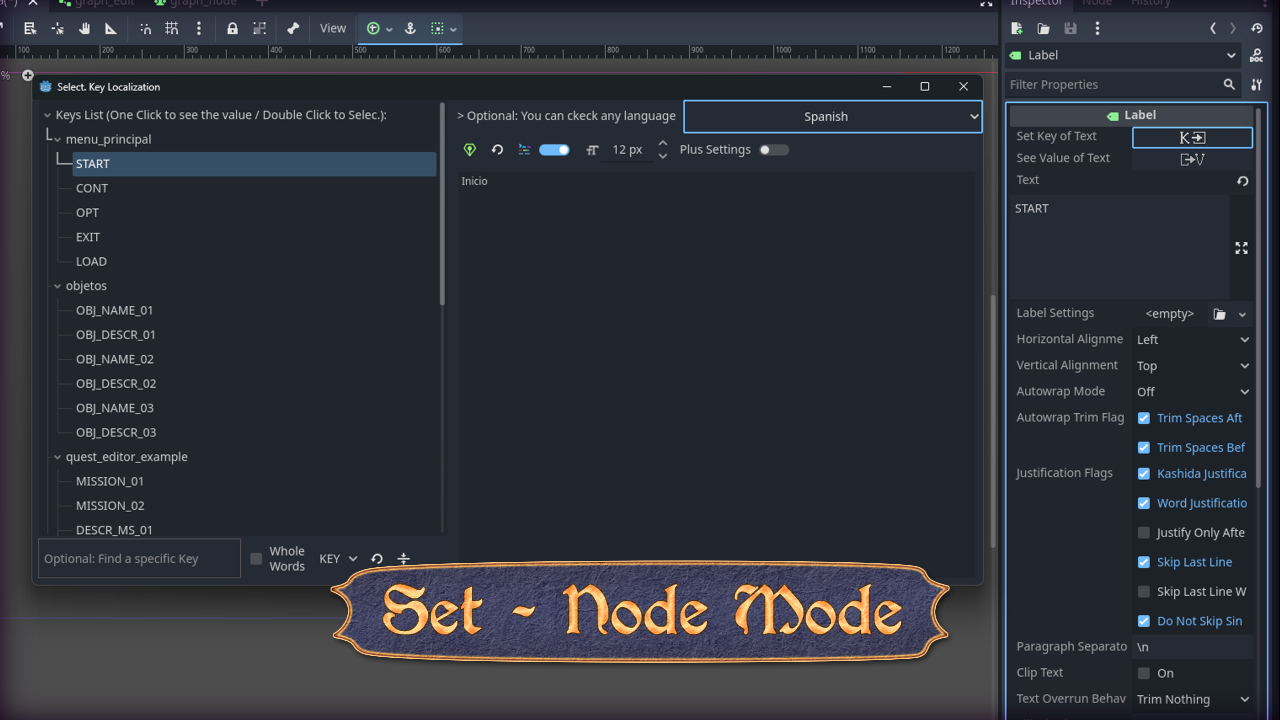
- It allows for faster placement of language keys from CSV files in nodes with the Text property, as well as in user-created variables within scripts. When the plugin is activated, two buttons, Set and See, will appear. Clicking these buttons will open windows for selecting and viewing the keys.

- In the See window, you can consult the key entered in the inspector. The value of the corresponding language would be displayed, as well as the option to consult it in the other languages of the project.
- (Since version 1.3) A number of options are available to adjust the text according to our preferences: toggle BBCode formatting, font size, line separation, paragraph separation, and horizontal alignment. These adjustments will not affect the final text, only its display.

- In the Set window, all the keys will be listed, grouped by their corresponding 'csv' file. Each group of keys can be minimized/maximized by clicking on the arrow next to the group name.
- By clicking once on a key, the value of the selected language will be displayed (it can also be consulted in other languages).
- If pressed twice, it will place the reference key in the corresponding variable/field.
- (Since version 1.3) A Keys/Files search tool is available, which filters and groups similarities in the top 'Treekey' field. To make all keys reappear, simply leave the field empty or click the Clear Finder button. A series of options are also available to refine the search, as well as a button to Collapse/Expand all fields.
- (Since version 1.3) On the right, in the language display, you'll also find the See window options, plus two unique buttons:
- Verbum Inser: Inserts the current value from the language text box into the Inspector's Variable/Node field. This is very useful if you don't want to enter a reference key, but do want to enter the text in a specific language.
- Vacuus: A shortcut to clear the text entered in the Inspector's Variable/Node field without having to close the window.

- It is important that the language headers in the CSV tables are in the correct format. Normally, only a single language code would be used, such as 'en', 'es', 'fr', 'de', 'ja', etc. However, if you want to write specific locales like 'en_UK', 'es_ES', etc., you MUST always use the underscore '_', not '-'. For example:
- Correct > en_UK, es_ES
- Incorrect > en-UK, es-ES
NOTE
Since version 1.4, headers in the format language_Script_COUNTRY_VARIANT can be read.
- (Since version 1.4) Compatibility with '?plural', '?context', and combined '?plural / ?context' tables. Keys and values for these special tables can be viewed and set.
What are the '?plural', '?context', and '?plural / ?context' tables?
If you're not familiar with these tables, I recommend reading the Godot documentation. In summary:
- The '?plural' tables allow the use of different plurals, since depending on the language, more than one plural form can be used (2, 3, 4, and even 5).
- It's important to note that not all values in the column are plural, as the first value is usually singular, and the rest are the different plural forms. Therefore, the value placed on the same line as the REFERENCE_KEY is the singular form, and the rest are the plural forms, from smallest to largest, going down the column. Of course, this depends on the language.
- The '?context' tables are used when a word can have an ambiguous meaning depending on the language, and the best way to differentiate it is by considering the context.
- Tables with any of these properties will appear with a suffix next to the CSV name in the 'Treekey' field of the 'Set' window, indicating the special table type. Clicking on one of its reference keys displays one or two buttons, depending on its type:
- Amount for [Plural] type tables. A SpinBox that allows you to modify the amount.
- Context for [Context] type tables. An OptionButton that contains all the contexts associated with the reference key.
- In the case of combined tables, both options appear.

- For the special tables to function correctly, certain aspects must be kept in mind:
- All tables:
IMPORTANT
The first column MUST consist of REFERENCE_KEYS (like standard tables), and not a language. Godot can read special tables whose first column is REFERENCE_KEYS, as well as a language as a reference key, BUT it is easier with REFERENCE_KEYS. The plugin WORKS with the first column consisting of REFERENCE_KEYS; having a language as the first column could cause problems. e.g.:
- Correct:
key ?context fr ru en ja zh LETTER Alphabet Lettre Буква Letter 字母 字母 LETTER Message Courrier Письмо Letter 手紙 信件 - Incorrect:
en ?context fr ru ja zh Letter Alphabet Lettre Буква 字母 字母 Letter Message Courrier Письмо 手紙 信件
- Correct:
- Tables '?plural':
- The ?pluralrule row is NOT necessary for the plugin (even for Godot). The program already includes the rules for plurals (you can see this in the variable 'const CODE_PLURAL_LANGUAGE' and the '_apply_language_rule' method in 'manage_set_and_see_localization.gd'). ONLY use this row if you want to modify specific rules, but those changes WILL NOT work in the plugin. If you want to modify the plugin's plural rules, you have to do it in the 'manage_set_and_see_localization.gd' script by modifying the '_apply_language_rule' method.
- In the '?plural' column, you only need to write something in the cell next to the REFERENCE_KEY. It's best if the '?plural' parameter is always the same in all CSV documents. It can be a single character like ".", or any letter. This makes it easier to use the 'tr_n()' function and others. For example:
    #tr_n(message: StringName, plural_message: StringName, n: int, context: StringName = &"")
    tr_n("ANY_REFERENCE_KEY", ".", 2)
NOTE
This step isn't required for the plugin, but it's good to know if you're not familiar with this type of table.
- Tables '?context':
- All 'context' groups must have the same REFERENCE_KEY (just as if the first column were a language, it would have to be the same word). e.g.:
key ?context fr ru en ja zh LETTER Alphabet Lettre Буква Letter 字母 字母 LETTER Message Courrier Письмо Letter 手紙 信件 ANOTHER_KEY context_a example_fr_0 example_ru_0 example_en_0 example_ja_0 example_zh_0 ANOTHER_KEY context_b example_fr_1 example_ru_1 example_en_1 example_ja_1 example_zh_1 ANOTHER_KEY context_c example_fr_2 example_ru_2 example_en_2 example_ja_2 example_zh_2
- All 'context' groups must have the same REFERENCE_KEY (just as if the first column were a language, it would have to be the same word). e.g.:
- Combined '?plural' / '?context' tables:
- These are governed by the same rules as all the previous ones.
- All tables:
- The '?plural' tables allow the use of different plurals, since depending on the language, more than one plural form can be used (2, 3, 4, and even 5).
Installation
- Add the 'set_and_see_localization_key_plugin' directory to the "addons" folder. e.g:
res://addons/set_and_see_localization_key_plugin
- Activate the plugin:
Project > Project Settings > Plugins > Activate **Set&See Localization Keys in the inspector**
- Specify the ".csv" file folder. (See Configuration)
- Update references. (See Configuration)
Configuration
- Create a folder to store all the ".csv" files. Importing them will generate "Translation" files that must be manually added in:
Project > Project Settings > Localization > Translations > "Add..." button
NOTE
Generating "Translation" files is not part of the plugin; it's a system natively included in Godot. It's necessary to access language keys during gameplay, as well as for some parts of the plugin.
TIP
It's advisable to distribute the keys across several "csv" files for better visualization in the "TreeKey" of keys, as it groups them by the containing "csv" files.
- Go to the plugin settings:
Project > Project Settings > General > Internationalization > Set And See Keys
- Path Localization Directory. The plugin needs a folder to store all the "csv" files to read and load the reference keys. It also reads subfolders.
IMPORTANT
When the directory is changed, you must click the Reload CSV files button to update the reference.
NOTE
If this property does not appear, simply activate the 'Advanced Settings' CheckButton.
- Name Extension is used to activate the functionality in scripts, for one of the two Scripts modes (See Functionality). If a variable has the @export annotation, is of type String or StringName, and ends with that extension, the Set&See option will be activated in the inspector. e.g:

IMPORTANT
The extension can be modified at any time, but it is important to note that variables written with the old extension will stop working in this mode and must be changed. Therefore, do this at the beginning of the plugin installation.
- Reload CSV files is a button that will update the references to CSV files if they are edited in parallel by an external application, or if the folder directory is changed.
NOTE
References will also be updated if the project is restarted.
- Path Localization Directory. The plugin needs a folder to store all the "csv" files to read and load the reference keys. It also reads subfolders.
Functionality
- There are three modes; integrated into Nodes, integrated into Scripts, and as a Node to be added in the Editor (since version 1.2).
- Nodes (embedeed): The Nodes with the Text property will have the two Set and See buttons directly above the property. It also works with LineEdit in its PlaceHolder, as well as in the Label3D, among others.
- Scripts (embedeed): There are two ways: using the Name Extension or the @export_category annotation.
- Name Extension: By writing that extension at the end of the variable name in the script. It must also include the @export annotation and be of type String or StringName. e.g:
- @export_category, writing this annotation with the argument:
VerbumInser.NAME_CATEGORY
- The two buttons will appear, where you can select the script variable(s) that are of type String or StringName, and with the @export annotation.

IMPORTANT
There must be at least one variable with the @export annotation and (preferably) of type String/StringName, for the two buttons to appear.
TIP
I recommend placing it at the top, or below all the @export statements in the script for visual reasons.
NOTE The @export_category mode would be incompatible with Name Extension mode variables.
- In this mode, you can select a variable from the inspector in the "Set" and "See" windows.


- The two buttons will appear, where you can select the script variable(s) that are of type String or StringName, and with the @export annotation.
NOTE
Both (Name Extension Mode and Export Category Mode) serve the same purpose. Choose the one that best suits your needs.
Why use reference keys in scripts?
This can be useful for creating object and character cards, dialogue references, etc.
How would they be used in code?
There are two ways: with the tr() or TranslationServer.translate() methods, using the reference key as an argument. I recommend reading the Godot documentation.
- Name Extension: By writing that extension at the end of the variable name in the script. It must also include the @export annotation and be of type String or StringName. e.g:
IMPORTANT
The scene must be saved to apply the changes to the variables.
- 'SetAndSeeButtonEditor' Node (since version 1.2): It is a version of the 'Button' Node, but with the name 'SetAndSeeButtonEditor'. It's designed to be added to embedded/floating plugins in the Editor, especially those of the 'Graph-based' type, although it would also work with any other plugin integrated into the Editor.
NOTE
There is no need to use the
pressed, button_down, etcsignals to enable its activation. It is already implemented in its code.- The button has two properties: Mode and Target Text Node.
- Mode: These are the classic 'Set' and 'See'. When the button is pressed, it activates the corresponding window.
- Target Text Node: This must be a node with the Text property, to which the effect of the selected mode is applied.


- The button has two properties: Mode and Target Text Node.
- Nodes (embedeed): The Nodes with the Text property will have the two Set and See buttons directly above the property. It also works with LineEdit in its PlaceHolder, as well as in the Label3D, among others.
Extra
- Since version 1.2: The language value field in the 'Set' and 'See' windows now supports the 'BBCode' format.
Uninstallation
FIRST IMPORTANT: Project > Project Settings > Plugins > Disable "Set & See Localization Keys in the inspector".
Then you can delete the plugin folder.
NOTE
Removing the plugin will NOT delete any keys added to the fields. REMEMBER: Save the project before.
License
MIT License
Copyright (c) 2026 JavatoScriptor
Copyright (c) 2024 Banana Holograma - Godot Essentials > csv reader
Copyright © 2025-present Hugo Locurcio and contributors > Icons
Changelog for version v 1.4.1
2026-09-29 21:55:08
No changelog provided for this version.