Description
Changelog
Reviews (0)
Imports .aseprite / .ase files as they are: each file becomes a SpriteFrames resource with one animation per tag, timed like in Aseprite, with nothing exported into your project. Save in Aseprite, switch back to Godot, and the animations update. Works for any sprite: platformer characters, effects, pickups.
hero.aseprite (48x48)                      SpriteFrames (48x48 frames)
  tags: idle_loop, run_loop, jump    ->      idle (loops), run (loops), jump
Features
- One animation per tag. Frame durations are kept, as are reverse and ping-pong tags. A tag ending with
_looploops, and the suffix is dropped from the name. - One sheet per file. Every frame is packed into one lossless texture, trimmed to its pixels, with repeated frames stored once. Sprites keep their size and pivot.
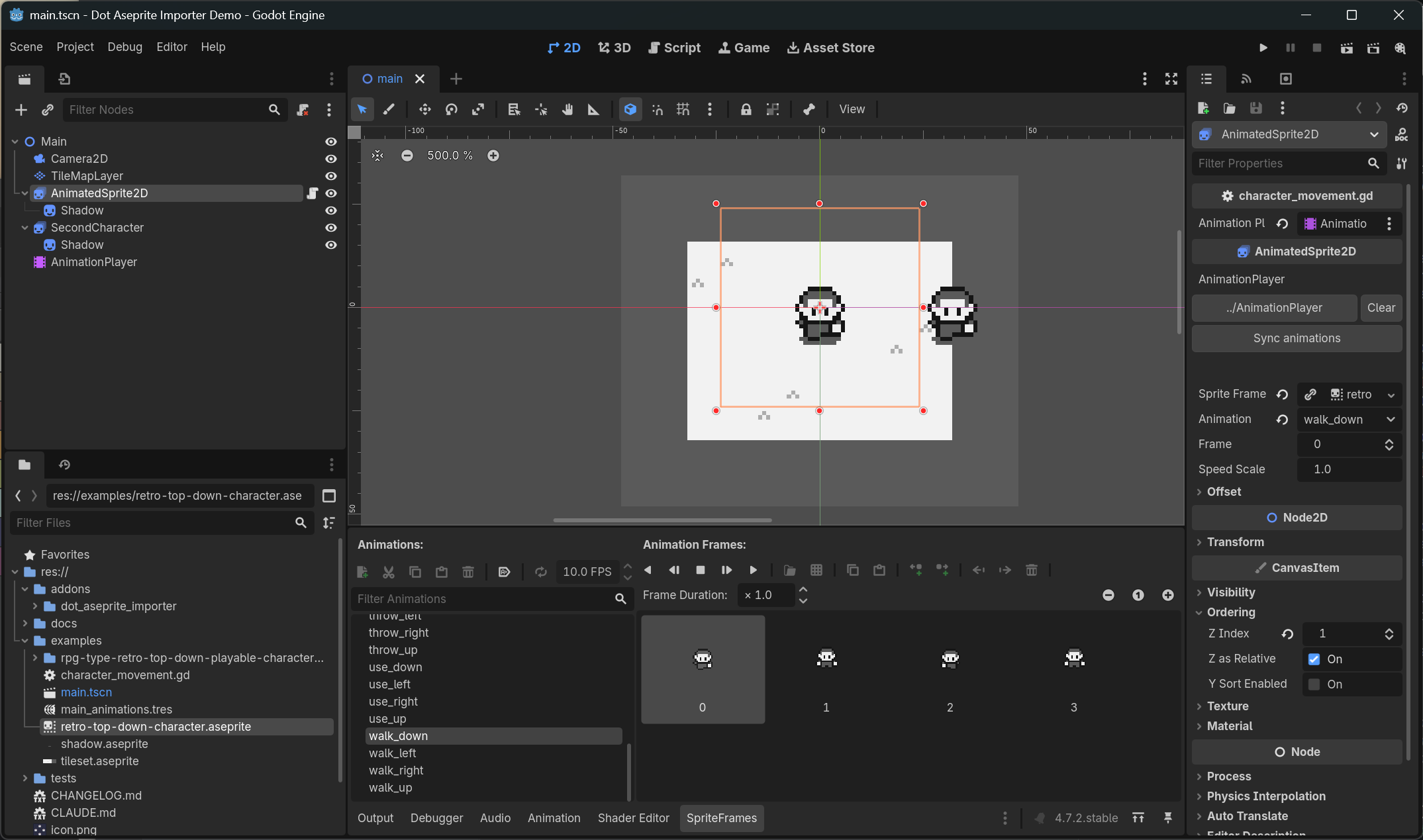
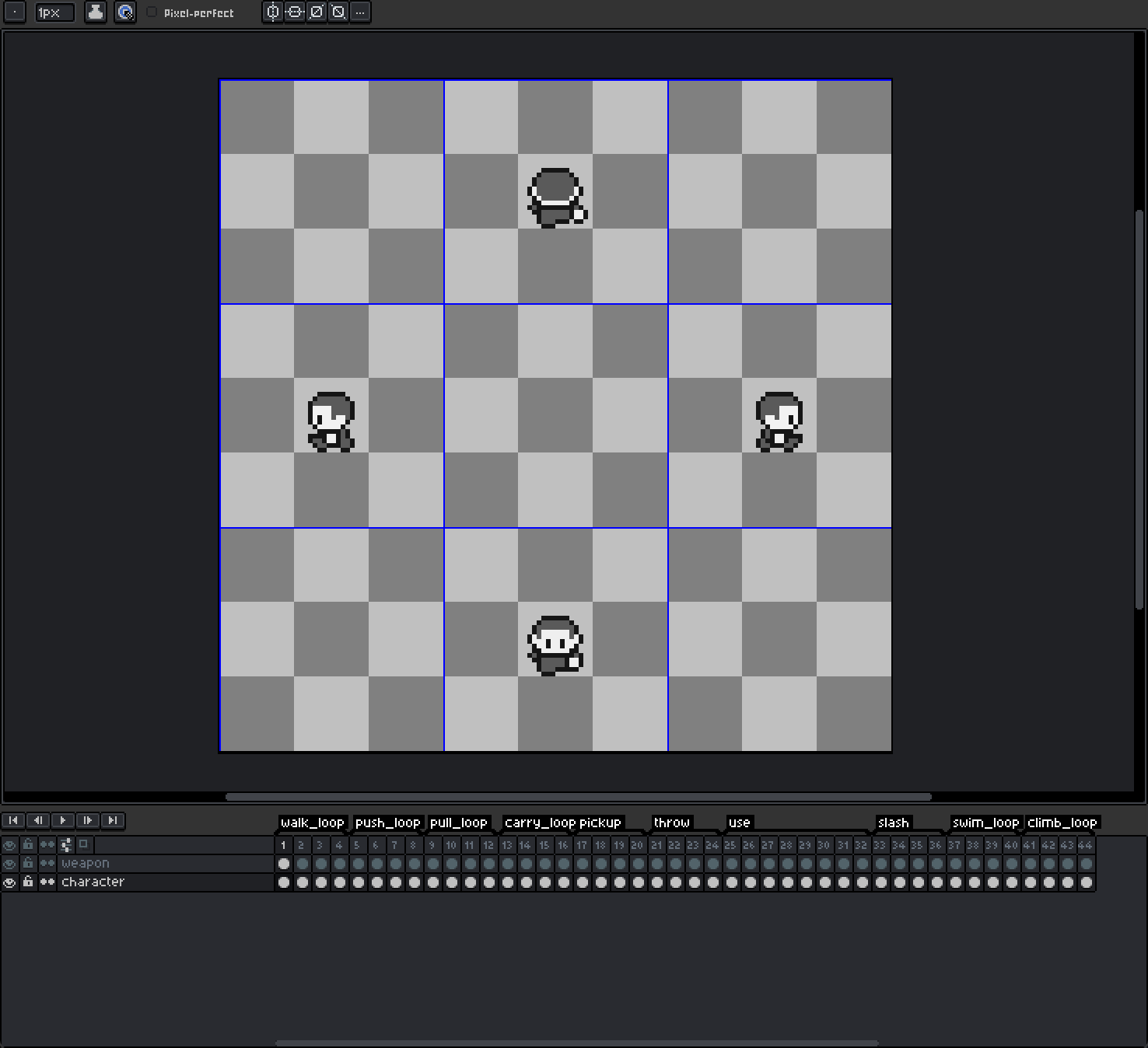
- Optional 3x3 grid for top-down characters. Set
grid/directionsto3x3, per file or for the whole project in Project Settings > Import Defaults, and draw every frame as a grid of facing directions. Each tag then gives one animation per direction (walk_down,walk_left_up, ...), and empty cells give no animation. - AnimationPlayer sync. Link a player from the AnimatedSprite2D inspector. It gets the same animations, kept up to date on every reimport, and the tracks you add (sounds, hitboxes, method calls) survive.
- Small scenes. The player's animation library is saved to its own
.tresfile. - Texture importer. Import As: Dot Aseprite Texture turns any
.asepriteinto a plainTexture2Dfor Sprite2D, TextureRect, shaders or TileSets. - Layers. Import one layer or group from a dropdown, or exclude helper layers and tags by pattern.
- Fast. Aseprite runs once per import. Layers, tags and durations are read straight from the file.
Requirements
- Godot 4.7.
- Aseprite 1.3 or later, on every machine that imports the files. If it is not in the default location (a Steam install, for example), set Editor Settings > Dot Aseprite Importer > General > Executable Path.
Quick start
- Enable Dot Aseprite Importer in Project > Project Settings > Plugins.
- In Aseprite, tag each animation. End a tag with
_loopif it loops. - Save the file inside the Godot project. It is imported when the editor regains focus.
- Drag the file onto the Sprite Frames property of an AnimatedSprite2D and call
play("run").
Documentation
Guides for platformer and top-down characters, every import option, the AnimationPlayer sync and a demo project are on GitHub: https://github.com/DRS90/dot-aseprite-importer
The example character is by 5yvalia (CC0). Released under the MIT license.
Changelog for version v0.1.1
No changelog provided for this version.