Asset Drawer
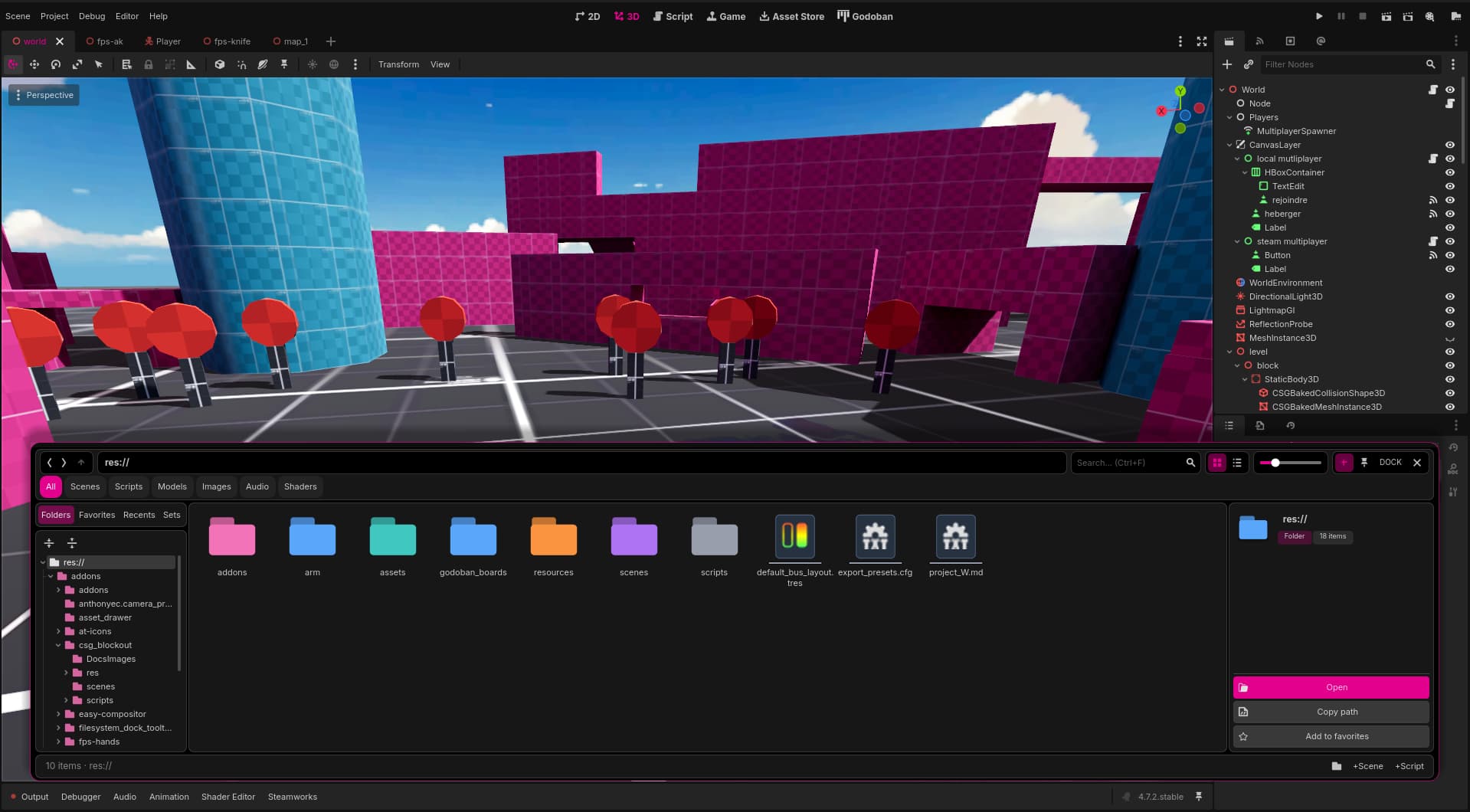
An asset drawer inspired by Unreal Engine's Content Drawer, for Godot 4. Press Ctrl+Space and the drawer slides up from the bottom of the editor. Browse, search, drag and drop, then close it.

Why
Godot's FileSystem dock is handy, but it takes up space permanently. Asset Drawer brings the idea of Unreal's Content Drawer to Godot: a file browser that appears on demand, covers the bottom of the editor, then disappears when you no longer need it. It stays connected to the rest of Godot: folder colors, favorites, and drag and drop into the scene or the Inspector.
Installation
- Copy the
asset_drawerfolder into your project'sres://addons/folder:res://addons/asset_drawer/ ├── plugin.cfg ├── plugin.gd └── drawer.gd - Open Project → Project Settings → Plugins and enable Asset Drawer.
- Open the drawer with Ctrl+Space, with the toolbar button, or from Project → Tools → Asset Drawer.
Compatible with Godot 4.2 and later.
Quick start
| I want to… | I do… |
|---|---|
| Open / close the drawer | Ctrl+Space |
| Keep the drawer open | Click the pin in the top bar |
| Resize the height | Drag the handle at the top of the drawer |
| Add an asset to the scene | Drag it from the drawer into the scene |
| Assign a resource in the Inspector | Drag it onto the matching field |
| Find a file | Ctrl+F, then type the name |
By default, clicking outside the drawer closes it, unless it is pinned.
Shortcuts
| Shortcut | Action |
|---|---|
Ctrl+Space |
Open / close the drawer |
Esc |
Close the drawer (unless pinned) or the context menu |
Ctrl+F |
Focus the search box |
F2 |
Rename |
Ctrl+D |
Duplicate |
Delete |
Move to trash (with confirmation) |
Backspace |
Parent folder |
Enter |
Open the selected item |
| Double-click | Open (scene, script, resource, folder) |
Ctrl + mouse wheel |
Thumbnail zoom |
| Mouse back / forward buttons | Back / forward history |
Alt+V |
Paste the copied resource onto the hovered Inspector field |
The open shortcut leaves script autocompletion alone when a TextEdit / CodeEdit has focus.
Features
Interface
- Floating drawer with margins, rounded corners, an accent outline and a shadow so it stands out from the editor
- Slide-up opening animation (slight bounce and glow on the outline), animated closing
- Resizable height, remembered between sessions
- Pinned mode: the drawer stays open
- Details panel with preview (type, size, date, UID), can be hidden
- Status bar (item count, selection, path)
- Animated notifications (green = success, red = error) to confirm actions
- Micro-animations on buttons, rounded selection and hover in the list
Navigation
- Folder tree with parent folders pinned to the top as you go deeper, single click to open / expand, "Collapse all" and "Locate current folder" buttons
- Clickable breadcrumb and back / forward history
- Side tabs: Folders, Favorites, Recents, Sets
- Favorites synced with Godot's FileSystem dock
Search and display
- Recursive search inside the current folder (debounced)
- Type filters: All, Scenes, Scripts, Models, Images, Audio, Shaders
- Grid or list view, with a separate zoom level remembered for each view
- HD thumbnails generated asynchronously by Godot, loaded only for visible items
- Cap on displayed items (
MAX_ITEMS) to stay smooth in large folders
Folder colors
- Uses the custom colors from Godot's FileSystem dock (the
file_customization/folder_colorssetting) - Subfolders inherit their parent's color, like in the FileSystem dock
- Editable straight from the drawer: right-click a folder, then pick from the color swatches
File management
- New folder, new scene, new script (unique default name, never overwrites)
- Rename: the matching
.import/.uidfiles follow, along with favorites, sets and colors - Duplicate files and folders, including recursively
- Delete to the OS trash, with confirmation
- Reimport
- Copy path, absolute path or UID
- Show in the FileSystem dock or in the OS file manager
Sets
Named collections of assets, like Unreal's Collections: group files from different folders into one set and find them in the Sets tab. Right-click a set to delete it (the files are not touched).
Drag and drop
Drag one or more assets into the scene, the scene tree or Inspector fields, just like from the FileSystem dock.
Right-click menu
On a file or folder: open, show in dock / file manager, copy path / absolute path / UID, copy resource, new folder / scene / script, rename, duplicate, favorites, add to a set, reimport, folder color, delete.
On empty space (current folder options):
- Open the folder in the file manager
- Show in the FileSystem dock
- Copy the folder path / absolute path
- Add / remove the folder from favorites
- Refresh
- Switch to grid or list view
- New folder / scene / script
- Folder color
Copy / paste a resource
- Hover a resource in the drawer: a small green Copy button appears (or right-click → "Copy resource").
- Hover a resource field in the Inspector (for example the
Meshof aMeshInstance3D): a Paste button appears. - Click it, or use
Alt+V. The drawer does not need to be open to paste.
Customization
Appearance settings are constants at the top of drawer.gd:
| Constant | Purpose | Default |
|---|---|---|
HEIGHT_RATIO |
Default height (share of the editor window) | 0.19 |
MIN_HEIGHT |
Minimum height (px) | 140 |
SIDE_GAP |
Space on each side (px) | 40 |
BOTTOM_GAP |
Space below the drawer (px) | 10 |
MAX_WIDTH |
Maximum width (px) | 2200 |
ANIM_TIME |
Animation duration (s) | 0.2 |
SHOW_HINT |
"Asset Drawer Ctrl+Space" pill at the bottom of the editor | true |
MAX_ITEMS |
Maximum displayed items | 3000 |
SEARCH_DELAY |
Search debounce (s) | 0.18 |
STICKY_MAX |
Maximum pinned parent folders in the tree | 3 |
Colors (COLOR_*, TEXT_*) and the folder palette (FOLDER_COLORS) are in the same file.
Configuration files
- The drawer state (current folder, height, view, zoom, pinning, favorites, recents, sets) is saved in
res://.godot/asset_drawer.cfg. The.godot/folder is ignored by Git by default. - Folder colors are stored by Godot in
project.godot, underfile_customization/folder_colors.
Troubleshooting
Thumbnails don't show up: wait for the project import to finish, then right-click on empty space → Refresh.
Ctrl+Space does nothing: check that the plugin is enabled and that the shortcut isn't already taken by your system (some operating systems use it to switch keyboard language). The toolbar button and the Project → Tools menu work in any case.
A folder color doesn't show: colors come from the FileSystem dock. Set it there, or through the drawer's right-click menu, and it will be visible everywhere.
An error at startup: disable then re-enable the plugin, and check that the three files are present in res://addons/asset_drawer/.
Changelog for version v3.9
2026-10-04 20:18:55
No changelog provided for this version.
Reviews
 Recommended
by EdugamenDev - 04 October 2026
Recommended
by EdugamenDev - 04 October 2026
This is the best FileSystem Plugin i see it. I found out in a discord server and i check it out. My first look on this plugin is AWESOME very recommendable to use it. Plus this remind me kinda of UE File System in some aspects. And i love this so much
Login to write a review.