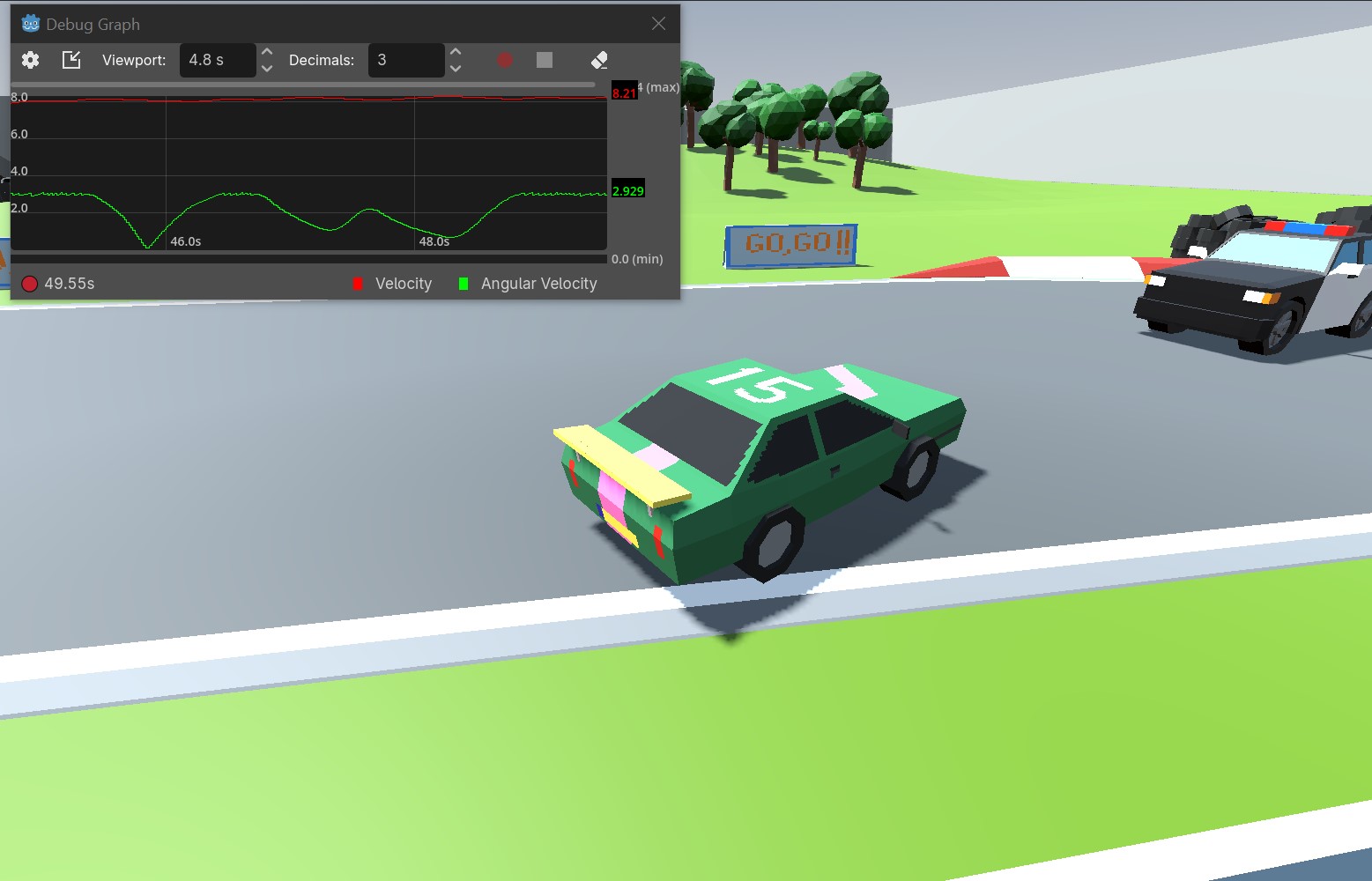
Instead of printing float values as raw text in the console, plot them in a graph! Docked in the editor, or as a floating window.
Use Case
While print() is useful for logging events, its difficult get a grip on rapidly changing values. To this plugin is perfect for logging large amounts of progressing data like player speed, frame delta, really any fluid float value in your project, and making it readable.
The plugin was designed with usability in mind, being docked at the bottom of the editor, or a floating window so you can monitor values while your game is running full screen.
How to Use
Using Debug Graph is very simple. Enable the plugin in Project Settings, and call...
DebugGraph.plot("your label", your_value)
...whenever you want to update the value, for example in _process().
Three examples:
func _process(delta: float) -> void:
    DebugGraph.plot("Player Speed", velocity.length())
    DebugGraph.plot(enemy.name + " Health", enemy.health)
    DebugGraph.plot("Frame Delta", delta)
Performance
The plugin was built with logging and analyzing short recordings of data in mind (1-4 tracks, <5 minutes). Longer recordings may lead to performance loss thanks to increasing memory usage, especially if a lot of data points get logged. Note that it does not log duplicate values, so logging in _process() or on value changed does not make a difference.
Changelog for version v1.0
2026-06-23 22:00:13
No changelog provided for this version.