 Easing Curve
Dual GDScript and Native curve editor for easing functions.
Designed for parity with Godot's Tween system and easing equations.
Version 1.2.2 includes two independent, supported API families:
EasingCurve / EasingCurvePoint in GDScript and NativeEasingCurve /
NativeEasingCurvePoint in GDExtension. Both can coexist in one project and use
the same Inspector workflow. The legacy API is not deprecated and remains
the portable fallback.
- Robert Pennner's easing functions (GDScript port: godot-easing)
- Godot 4.6 easing equations
- Includes some unique CSS and JS easing functions.
User Guide
Compatibility:
- Godot 4.4.1 or newer is required for v1.2.2, including both Legacy and Native workflows.
- Godot 4.7.1 is the primary validation version. The release tracker records exact candidate checks and remaining manual/CI certification.
- Native resources are supported on Windows x86_64 and non-threaded Web builds.
- Legacy resources remain supported on all plugin platforms and do not require a Native binary.
- Windows editor sessions currently use the release Native DLL. Native debug builds and hot reload are not part of the v1.2.2 support contract.
Choose an API:
| Project need | Recommended resource |
|---|---|
| Windows/Web project prioritizing Native sampling | NativeEasingCurve |
| Other platforms or maximum portability | EasingCurve |
| Existing project already using legacy resources | Keep EasingCurve; migration is optional |
Both resources expose the same transition catalog, point editor, transition parameters, and Reverse/Invert transforms. Select Convert to Native Copy or Convert to Legacy Copy in the Inspector to create a separate unsaved copy; the source resource is never replaced. A live legacy Custom Callable requires the explicit bake action because Native resources never retain callbacks.
@export var legacy_curve: EasingCurve
@export var native_curve: NativeEasingCurve

func eased_value(t: float) -> float:
    return native_curve.sample(t) if native_curve else legacy_curve.sample(t)
Installation:
Godot Asset Library / Asset StoreChoose the published v1.2.2 package. A listing backed by a Git source archive does not include the Native libraries; use the packaged GitHub ZIP for Native. Confirm the installed package contains the libraries for your target platform.
Godot 4.7 and newer:
- Install Easing Curve normally through the Asset Store.
- The plugin should be installed to
res://addons/easing_curve/.
Godot 4.4.1–4.6:
- Download Easing Curve through the Asset Library.
- In the Configure Asset Before Installing window, make sure Ignore asset root is unchecked before installing.
- Confirm that the installation preview shows the plugin under:
res://addons/easing_curve/ - Complete the installation.
- Download the packaged
easing_curve_v1.2.2.zipfrom the GitHub release. - Extract it and copy
addons/easing_curve/into your project'saddons/folder. - Use the packaged ZIP for Native support. GitHub Source code archives and source checkouts omit Native binaries; developers must build those separately. A project containing Native resources requires matching binaries to load them.
- The resulting path should be:
res://addons/easing_curve/
- Open Project > Project Settings > Plugins.
- Enable Easing Curve.
Create a new curve:
- Export
EasingCurveorNativeEasingCurve, then create the matching resource. - A new resource starts with a Linear preset. Native requires the matching library.
- Open
res://addons/easing_curve/_test_scene/test.tscnfor the bundled demo.
Select a Curve Preset:
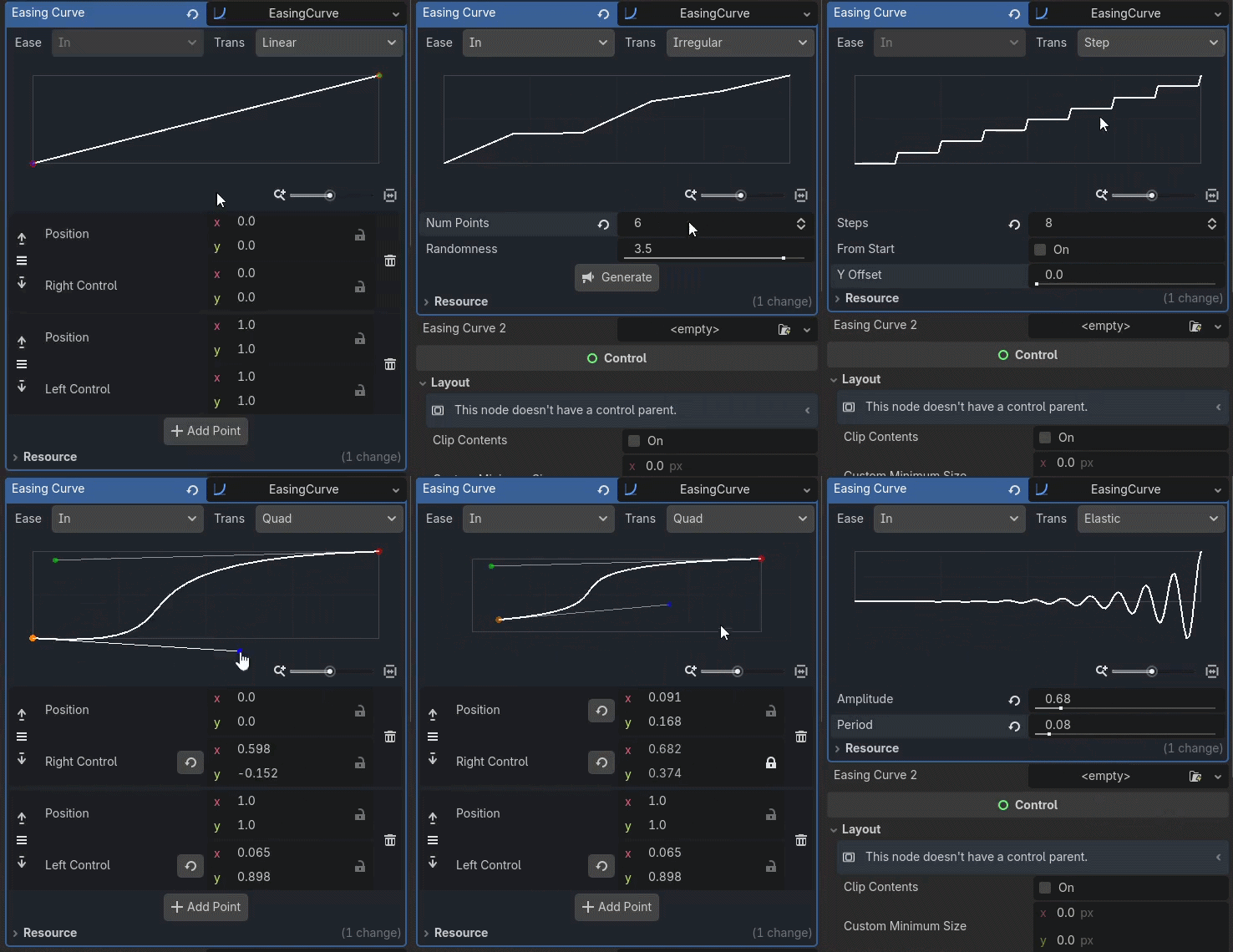
Select the Ease and Transition options to choose from the built-in presets and additional easing functions.
Ease ModesAll supported transitions can use the following ease modes. Custom, Linear, Constant, and CSS transitions do not have selectable ease modes. Ease modes control where the easing effect is applied over the duration of the curve:
- In -- Starts slow and ends fast.
- Out -- Starts fast and ends slow.
- In Out -- Starts slow, speeds up towards the middle, and slows down at the end.
- Out In -- Starts fast, slows down towards the middle, and speeds up at the end.
The exact shape and behavior depend on the selected Transition. For example, an Elastic or Bounce transition may oscillate or overshoot rather than simply accelerate or decelerate.
Godot Tween TransitionsThese transitions are designed for parity with Godot's built-in Tween easing behavior:
- Linear -- Linear interpolation, [Bézier]
- Sine -- Sinusoidal easing, [Bézier]
- Quad -- Quadratic easing, [Bézier]
- Cubic -- Cubic easing, [Bézier]
- Quart -- Quartic easing, [Bézier]
- Quint -- Quintic easing, [Bézier]
- Expo -- Exponential easing, [Bézier]
- Circ -- Circular easing, [Bézier]
- Back -- Back easing, configurable Overshoot, [Bézier]
- Elastic -- Elastic oscillation, configurable Amplitude and Period, [Function]
- Bounce -- Bouncing motion, configurable Number of Bounces and Bounce Damping, [Function]
- Spring -- Spring-like oscillation, configurable Frequency and Decay, [Function]
Bézier-backed presets can be edited directly in the curve editor. Modifying a preset creates a customized version while retaining the original transition and ease selection.
Additional TransitionsEasing Curve also includes transitions beyond Godot's built-in Tween system:
- Smoothstep -- Exact editable Bézier preset in all four ease modes; In Out
uses
3t² - 2t³. It is distinct from Sine and has no Tween counterpart. - Constant -- Returns a configurable Constant Value, [Bézier]
- Physics Spring -- Spring easing using physics (Stiffness, Damping, Mass, and Velocity), [Function]
- Jitter -- Stronger persistent-amplitude random variation; more points primarily increase jitter frequency (Num Points, Randomness) and Generate Tool Button, [Function]
- Irregular -- Noisy linear interpolation whose deviations shrink with more points / lower randomness (Num Points, Randomness) and Generate Tool Button, [Function]
- Step -- Staircase easing (Steps, From Start, and Y Offset), [Function]
- Power -- Fractional power easing (Power), [Function]
Smoothstep uses new transition IDs (Legacy 21, Native 109). Existing IDs and Native format 3 are unchanged. Saved Smoothstep resources need v1.2.1 scripts and matching Native binaries; older plugin versions do not recognize this mode.
Transition and ease menus include fixed mini-curve icons. Their shapes identify the mode and do not change with parameter edits.
CSS easing functions can also be used directly:
- Cubic Bézier -- Define a CSS-style
cubic-bezier()easing curve, [Function] - Linear -- Define a CSS-style
linear()easing function with custom stops, [Function]
Adjust your curve using the Curve Editor:
Bézier-backed presets, including multi-segment presets, expose all points and handles in the curve editor.
- Adding and Removing Points
- Left click anywhere on the grid to add a new point, or click the "Add Point" button.
- Right click a point to delete it, hold right click and drag across points to remove them, or click the trash button icon in the points list.
- Adjusting the Control Points
- You can adjust the bezier curve control points by dragging with the mouse or editing the points list.
- Control handles can be moved outside the grid box, but point positions cannot.
- Locking Control Points
- Vector2 properties can be locked by clicking the lock icon.
- Locked properties cannot be changed (except by copy-paste or manual re-ordering of the points list.)
- Locking a point's controls (left or right) allows you to drag the point without affecting its control handles.
- Lockable properties include point position, left control position, and right control position.
- Force Linear and Lock control states are available in Free and Linked handle modes.
- Vector2 properties can be locked by clicking the lock icon.
- Handle Modes
- Each point can use a handle mode to control how its left and right control handles behave:
* Free -- Each handle moves independently without affecting the other handle.
* Linear -- Collapses both handles to the point, producing straight segments between points.
* Balanced -- Keeps both handles aligned in opposite directions while allowing each handle to have a different length.
* Mirrored -- Keeps both handles aligned in opposite directions and at the same length. Moving one handle mirrors the other across the point.
* Linked -- Keeps both controls at a shared position.
- Note that control Locked and Forced Linear states apply in Free and Linked modes, and are preserved when switching modes.
- The selected-point toolbar keeps navigation, Handle Mode, L/R state, and a combined reset in one row. The reset restores Free mode and clears both control overrides while preserving the position lock. Linked shares state between the two handles. When entering Linked, Locked wins over Linear, which wins over Free. A single locked handle supplies the shared position.
- Stored control overrides remain visible but inactive in Linear, Balanced, and Mirrored modes. Switching modes preserves these flags until they are explicitly changed or reset.
- Each point can use a handle mode to control how its left and right control handles behave:
* Free -- Each handle moves independently without affecting the other handle.
* Linear -- Collapses both handles to the point, producing straight segments between points.
* Balanced -- Keeps both handles aligned in opposite directions while allowing each handle to have a different length.
* Mirrored -- Keeps both handles aligned in opposite directions and at the same length. Moving one handle mirrors the other across the point.
* Linked -- Keeps both controls at a shared position.
- Zoom and Pan
- Zoom and pan can be used to see points outside the grid box. The grid box represents an x_range and y_range of 0 to 1.
- Use the zoom slider (drag it or scroll over its track), or hold Ctrl/Cmd while scrolling over the graph, to adjust the zoom level. Plain scrolling over the graph scrolls the Inspector. The arrow box to the right of the zoom slider will reset the zoom.
- Click and drag with the middle mouse button to pan the curve editor. The arrow box to the right of the zoom slider will reset the pan.
- Snapping and drag feedback
- Enable Grid Snap and choose 2–100 subdivisions, or hold Ctrl/Cmd while dragging to snap temporarily. Points and new additions snap; handles stay free.
- Hold Shift to constrain a drag to an axis. Releasing and pressing Shift again establishes a fresh constraint from the current position.
- Coordinate readouts follow graph and Points-list drags. Editor Settings under Easing Curve / Curve Editor can hide the position tooltip or snapping row.
- Graph size follows Inspector width and editor scale. Border tick positions stay fixed during pan/zoom; their labels show the current coordinates.
- Reordering the Points List
- Click the up or down arrows or drag a point in the points list to swap it with another point.
- You can also use the drag handles to move a point anywhere in the points list.
- Select a property of any Legacy or Native point and right click to copy its value, paste a compatible value, or copy its property path.
- Ctrl/Cmd+C, Ctrl/Cmd+V, and Ctrl/Cmd+Shift+C perform the same actions for the selected point property. Compatible values can be copied between Legacy and Native curves.
Save your custom EasingCurve:
- The curve editor allows you to start from a basic preset and modify to suit your needs.
- When you're happy with your custom curve, you can save the resource to use wherever you want.
- Use the "Make Unique" option on saved resources to avoid modifying the original resource.
- Try the bundled comparison scene at
res://addons/easing_curve/_test_scene/test.tscn; development test fixtures are not included in the installed addon. - Changing Back Overshoot or Constant Value regenerates that active preset, replacing manual point edits. Undo restores the previous parameter and geometry. Setting an unchanged value or an inactive preset parameter preserves edits.
Resource Autosaving
- Godot automatically saves changes made to saved resources. This is the same behavior as the built-in
Curveresource. - If you edit an Easing Curve that has been saved as a resource, those changes will persist. Only modify a saved resource when you intend to keep the changes; otherwise, you may need to undo them.
Runtime updates:
- Any changes you make to the curve take effect immediately at runtime in the test scene--even when modifying in the local scene tree.
- See how your changes affect the scene in real time. A restart button is provided in the top-right corner as a fallback.
Future feature map:
- TBD — open to suggestions!
- Found a bug? Please open a Bug Report.
- Have an idea for a new feature or improvement? Open a Feature Request.
- Contributions are welcome! Feel free to open a Pull Request.
Thank you!
Thank you for using the EasingCurve plugin. Please support the development by sharing, starring or commenting if you found it useful.
This is my first plugin, so feedback and contributions are always welcome. See the links above to report bugs, suggest features, or contribute changes.
You can find all my addons on my GitHub profile page.

Release validation:
The release tracker records candidate validation, compatibility evidence, and unverified checks.
AI Usage Disclaimer:
AI-assisted coding was used during development for implementation, debugging, refactoring, and release-readiness review. Generated suggestions and changes were reviewed, modified where needed, and tested in Godot before release.
License:
Released under the MIT License.
Star History
Changelog for version v1.2.2
2026-09-10 19:22:13
No changelog provided for this version.